In Upservice, you can import your customer base (clients, suppliers, counterparty representatives).
To import customer contacts, go to the "Tickets" section, open the "Сhats" tab, click the "Add" button, and select "Importing Contacts".
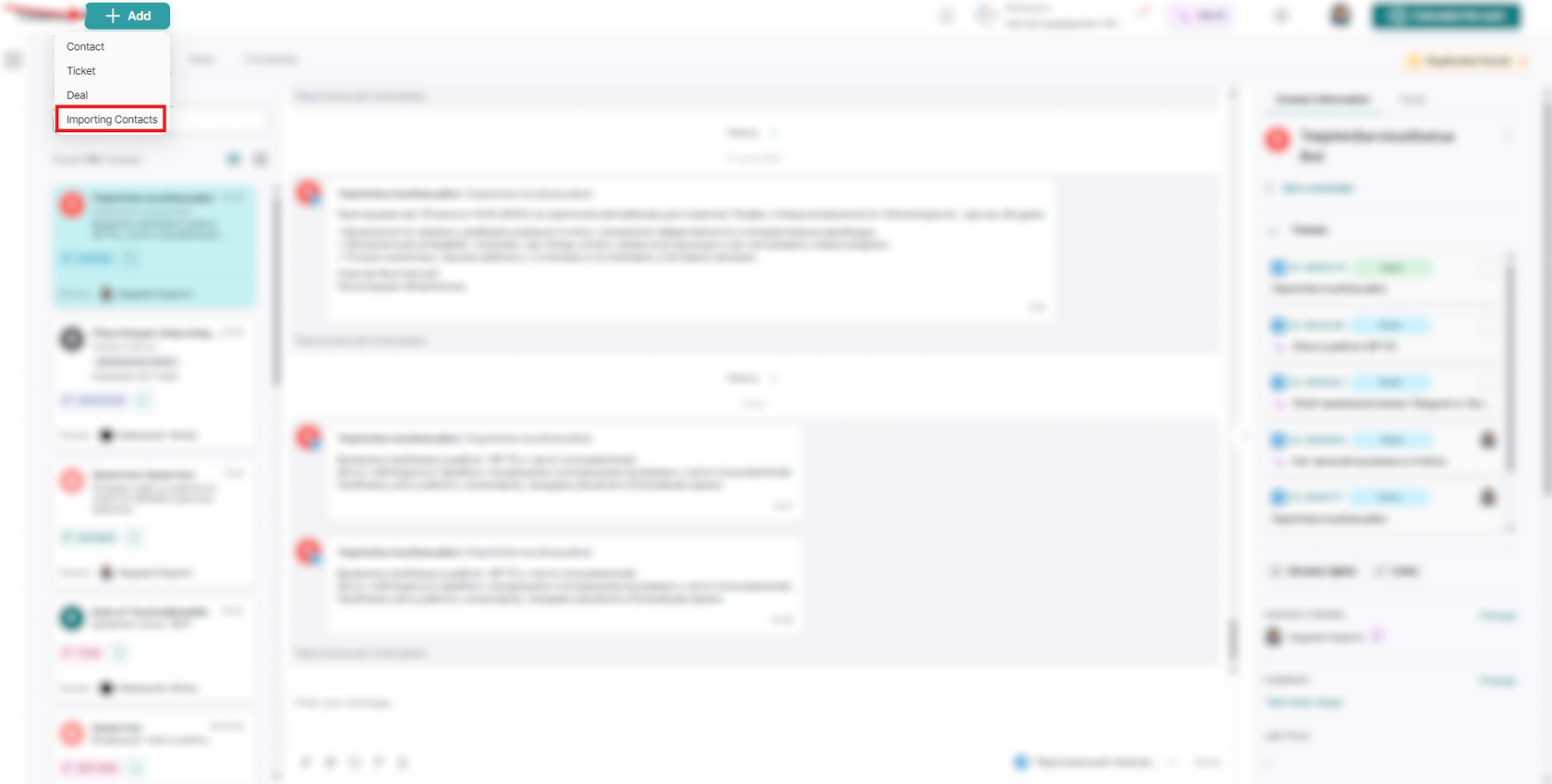
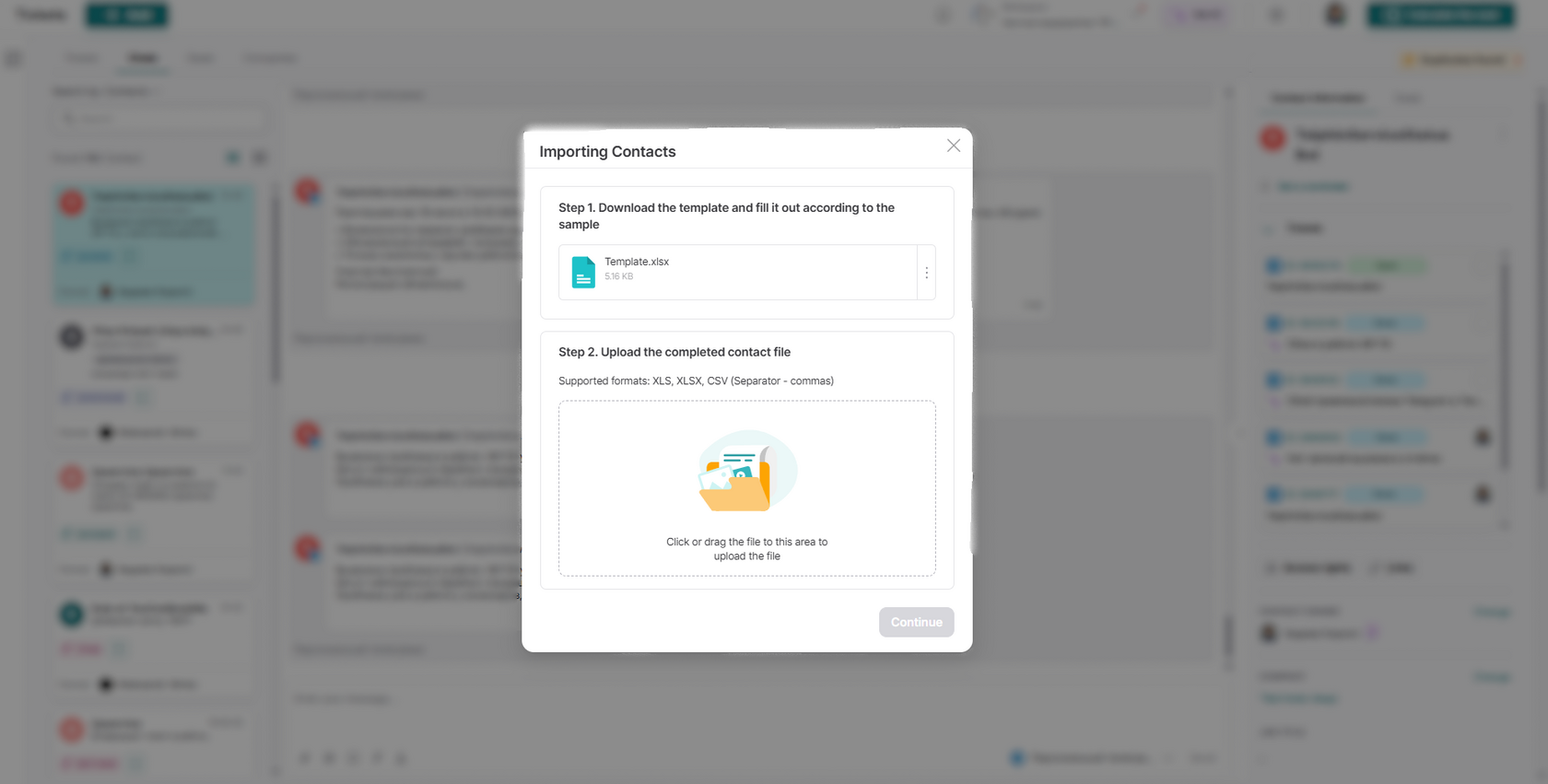
In the window that opens, click on the three dots to the right of the "Template" file and select "Download":
Save the template to your computer and open it. Inside the Template, you will see test data (an example of how to fill out the table). To ensure this test data doesn't appear in your company's contacts, don't forget to delete it.
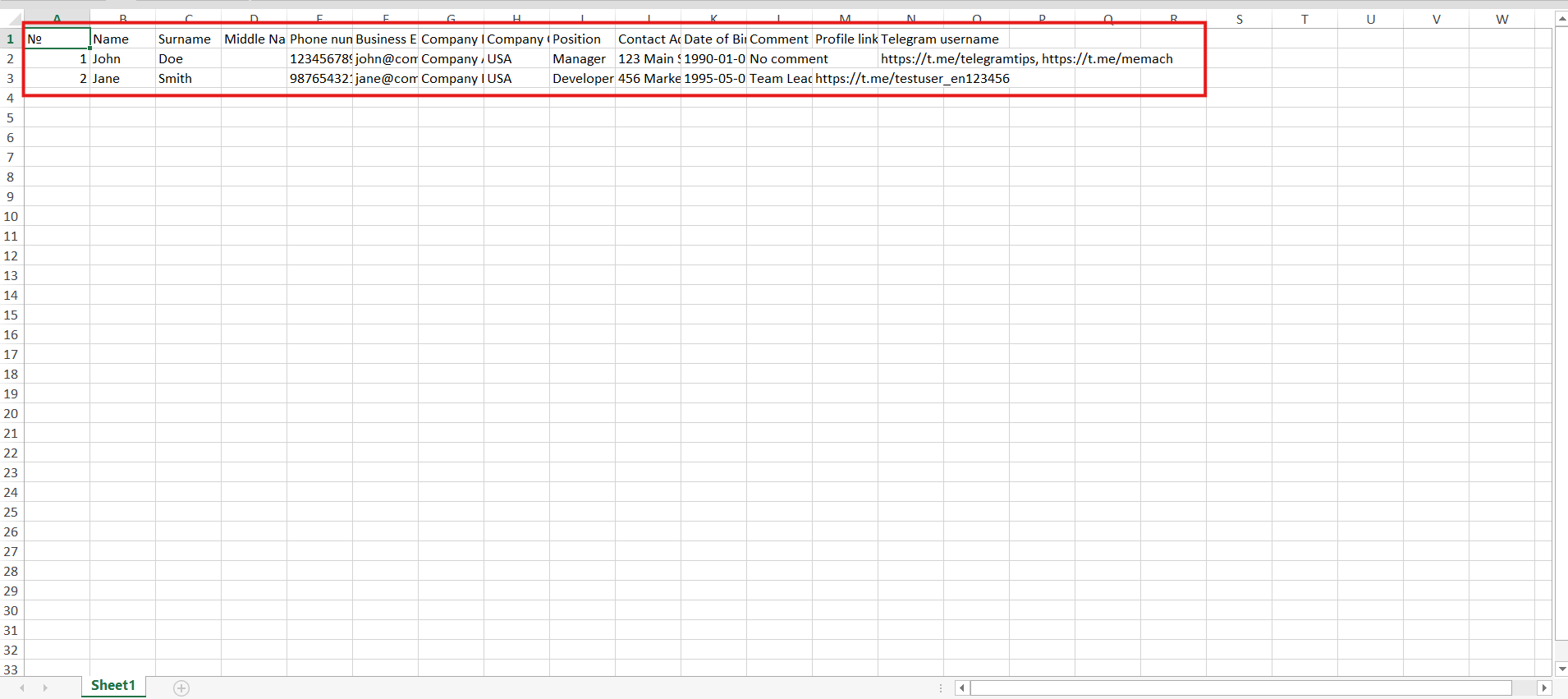
Fill out the table with your data following the example.
Here are a few key points you must observe when filling out the Template:
- Be sure to specify the first and last name of the imported contact.
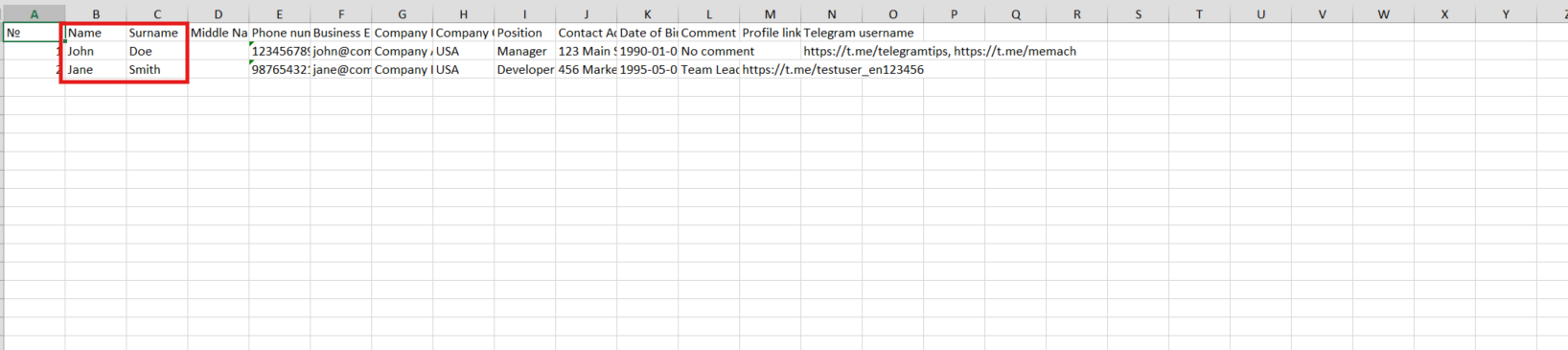
- You must fill in either the work phone or work email fields. You won't be able to import the contact without this data.

Please note: the phone number must be entered in international format.
- If you have multiple phone numbers or multiple emails for a contact, list them separated by commas (in a single cell in the table).

- If you fill in the "Company Name", be sure to specify the "Company Country". Our system will verify this counterparty and notify you if they are in the process of liquidation or bankruptcy.

- One counterparty can have several representatives (contacts of different employees). In this case, specify the exact same company name for all the imported contacts associated with them.

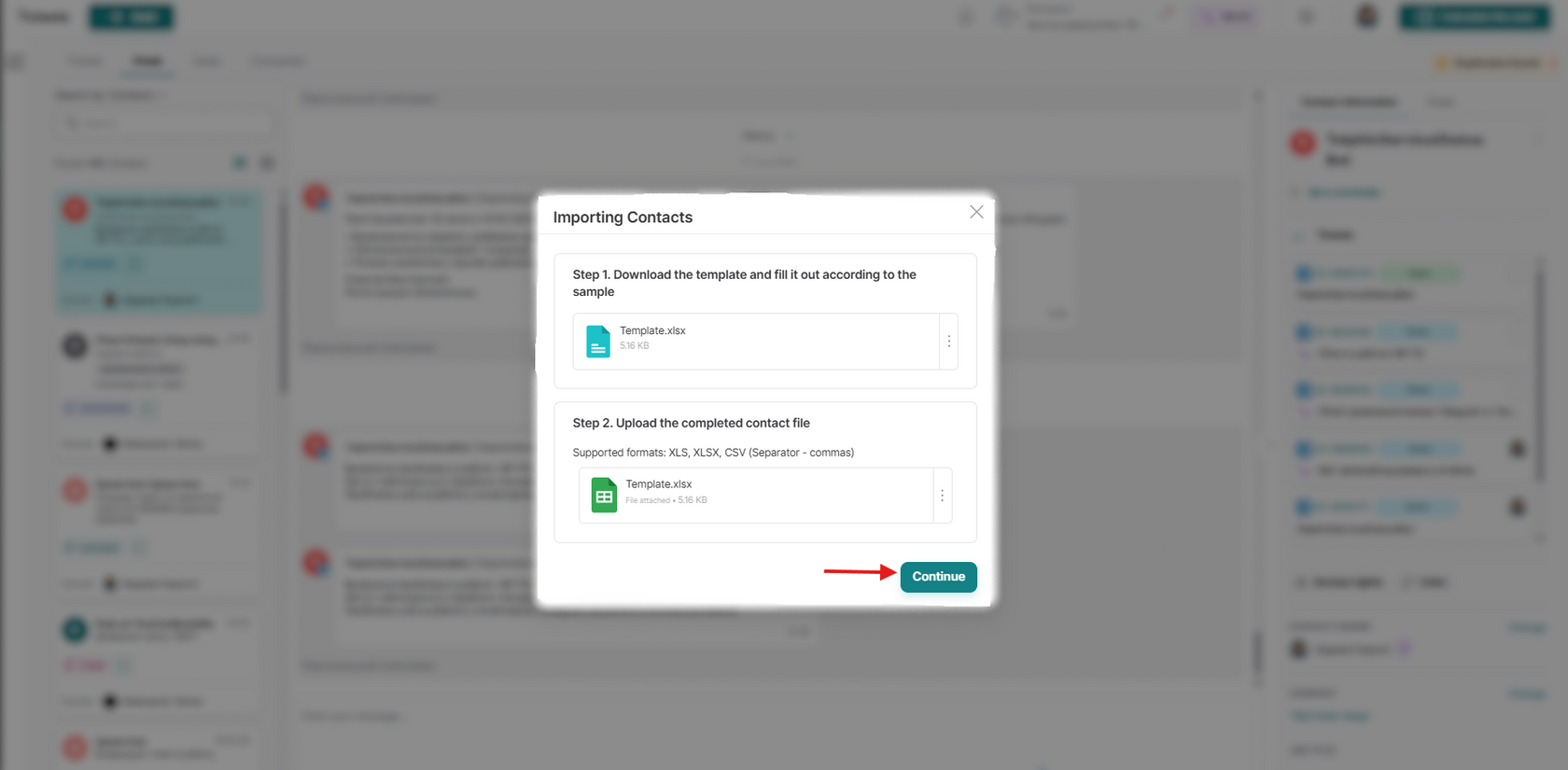
After you finish filling out the template, return to the Upservice tab and upload your completed table. Wait for the file to upload and click "Continue".
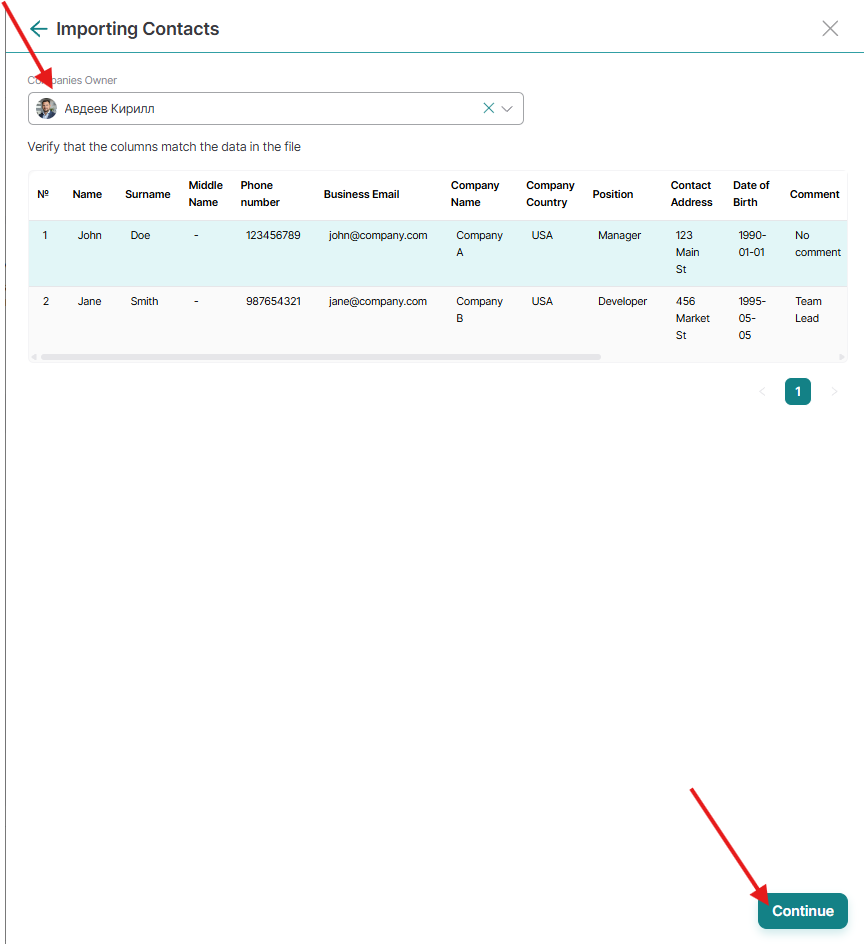
Select the person responsible for the counterparties and click "Continue" again.
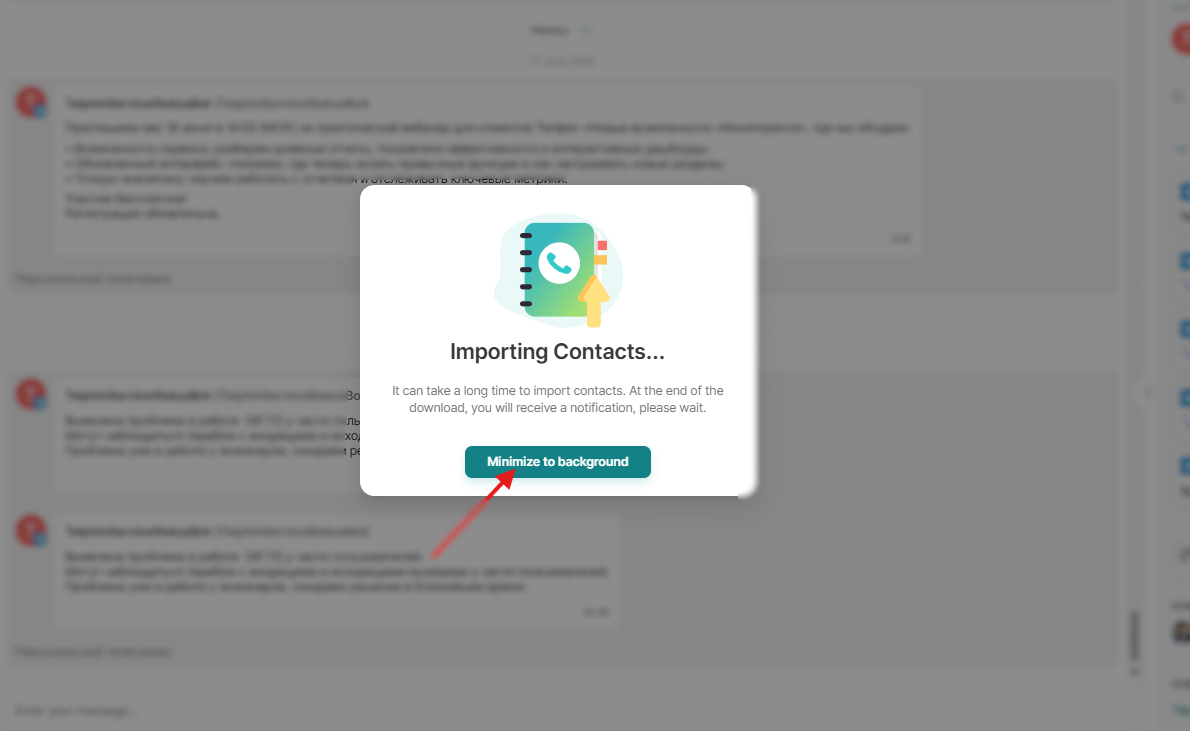
A warning window will appear:
"Importing contacts may take a long time. Once the upload is complete, you will receive a notification, please wait."
When the import is complete, you will receive a notification about it.

By clicking on the notification, you will be able to see the results of your contact import:

If the contacts were imported successfully — click "Finish"
If any contacts failed to import, Upservice will show you which fields were filled out incorrectly.
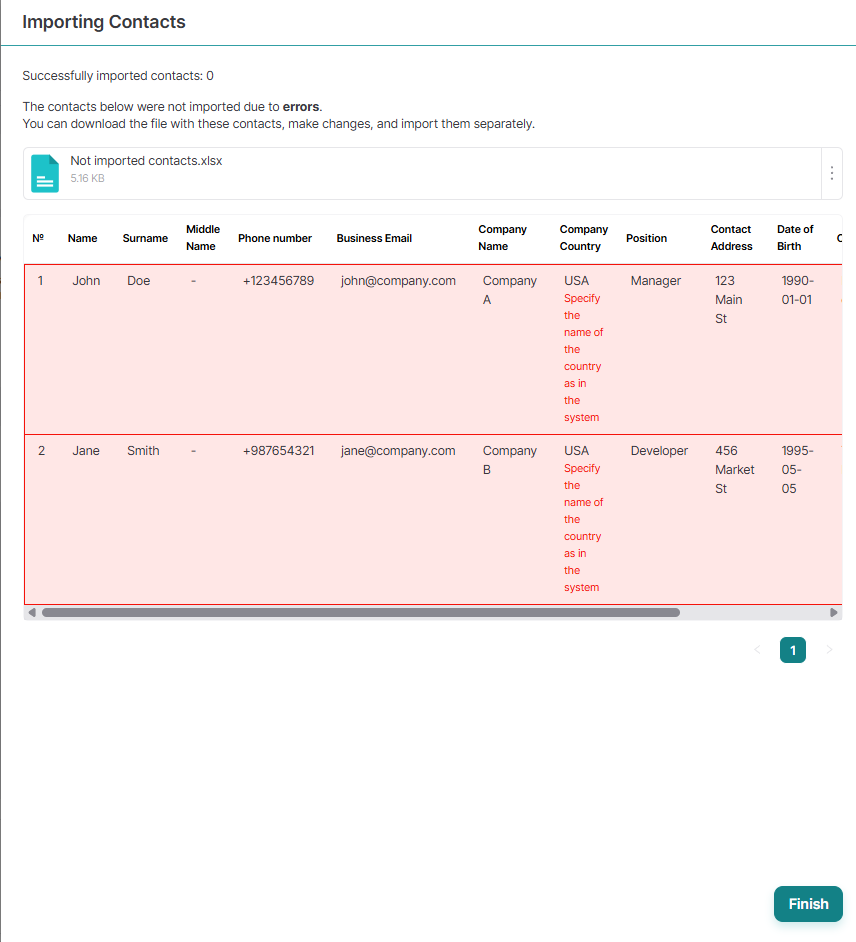
Click on the three dots to the right of the "Not imported contacts" file and download it.
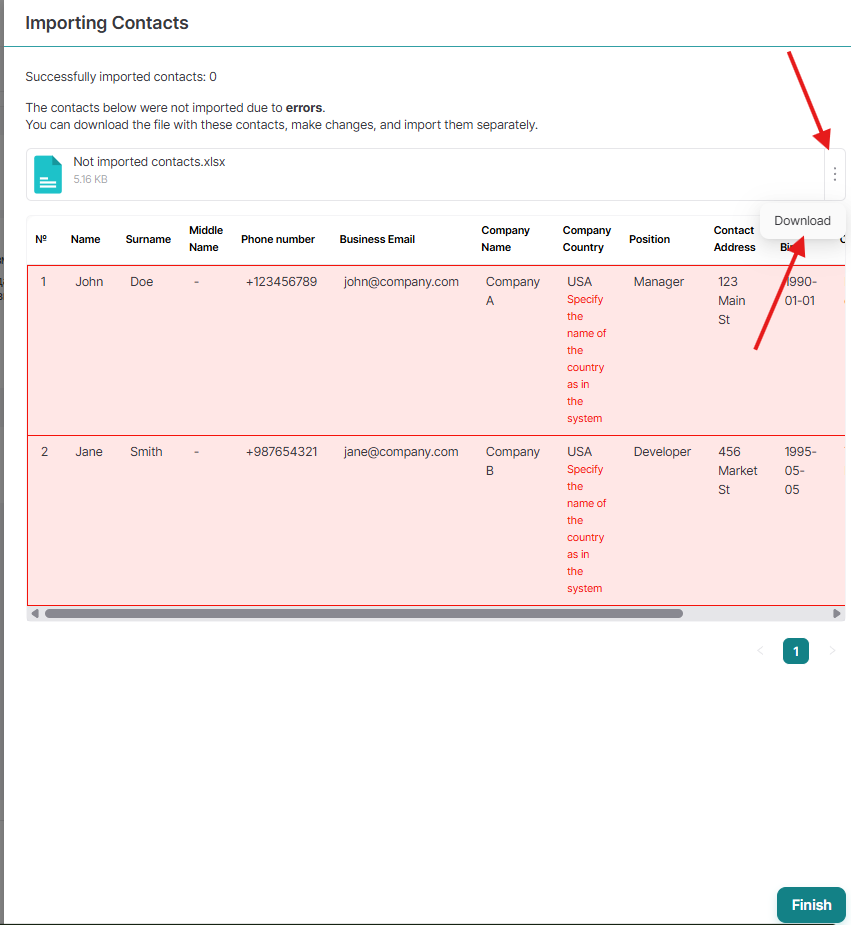
Open the downloaded file on your computer, correct the necessary data, and import the table again