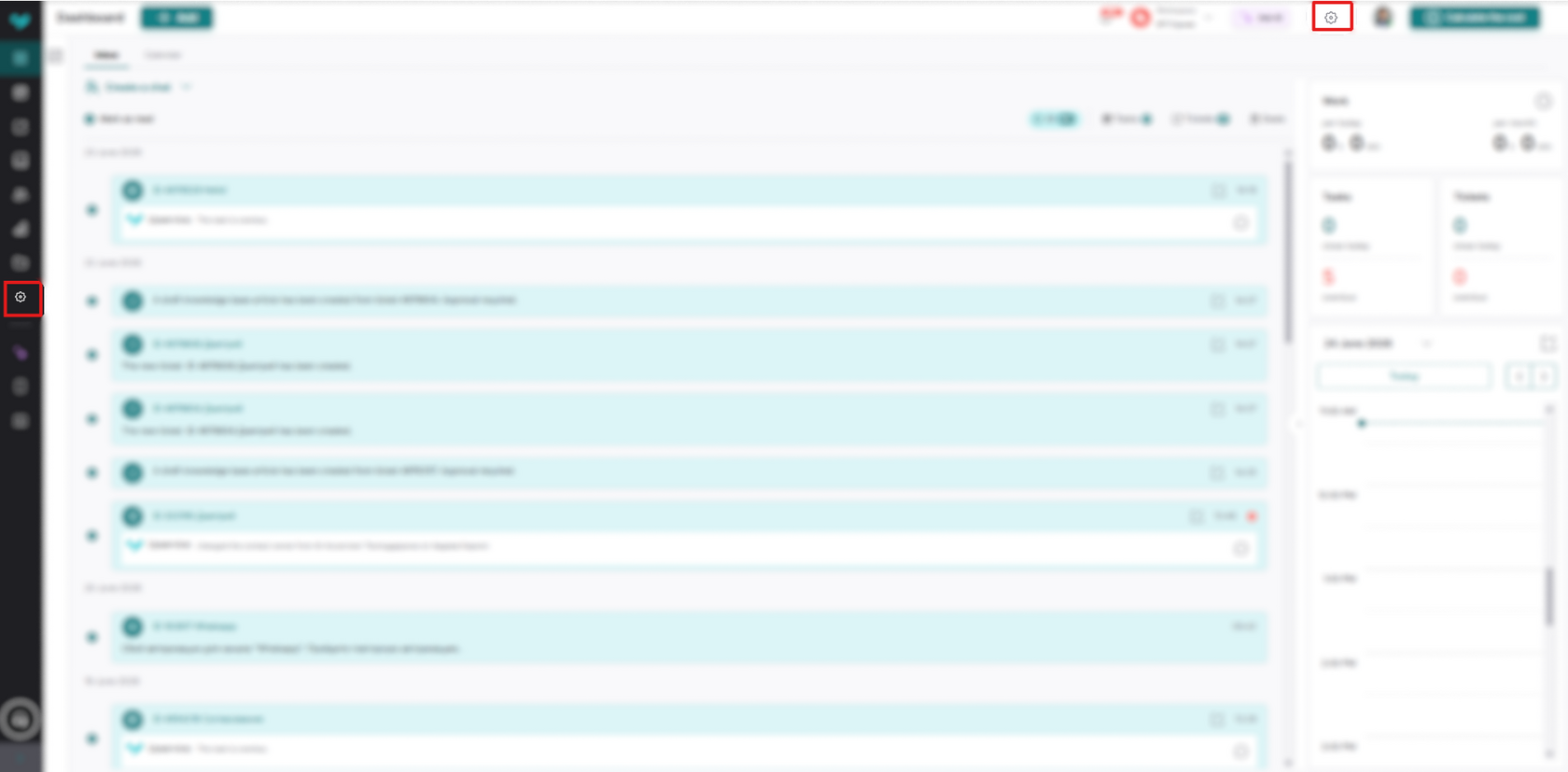
To access your account settings, simply click the gear icon in the upper right corner next to your company name:
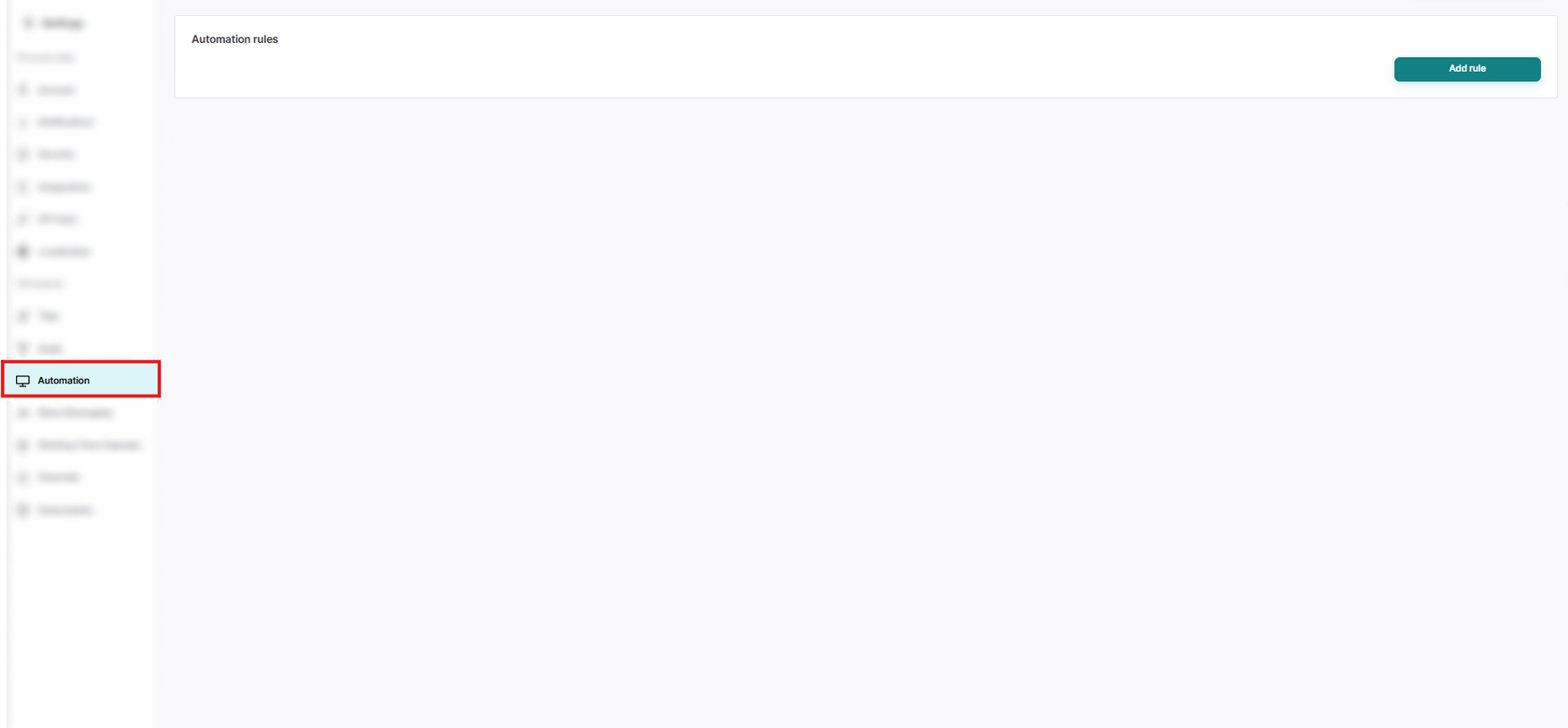
To create a rule, you need to click the "Add Rule" button in Account Settings:
And fill in fields such as:
- Rule name
- Trigger (The event that triggers the rule)
- Condition (The condition that determines when the rule applies)
- Select the required companies
- Action (What to do if the trigger is triggered and the conditions are met)
- Select a responsible person
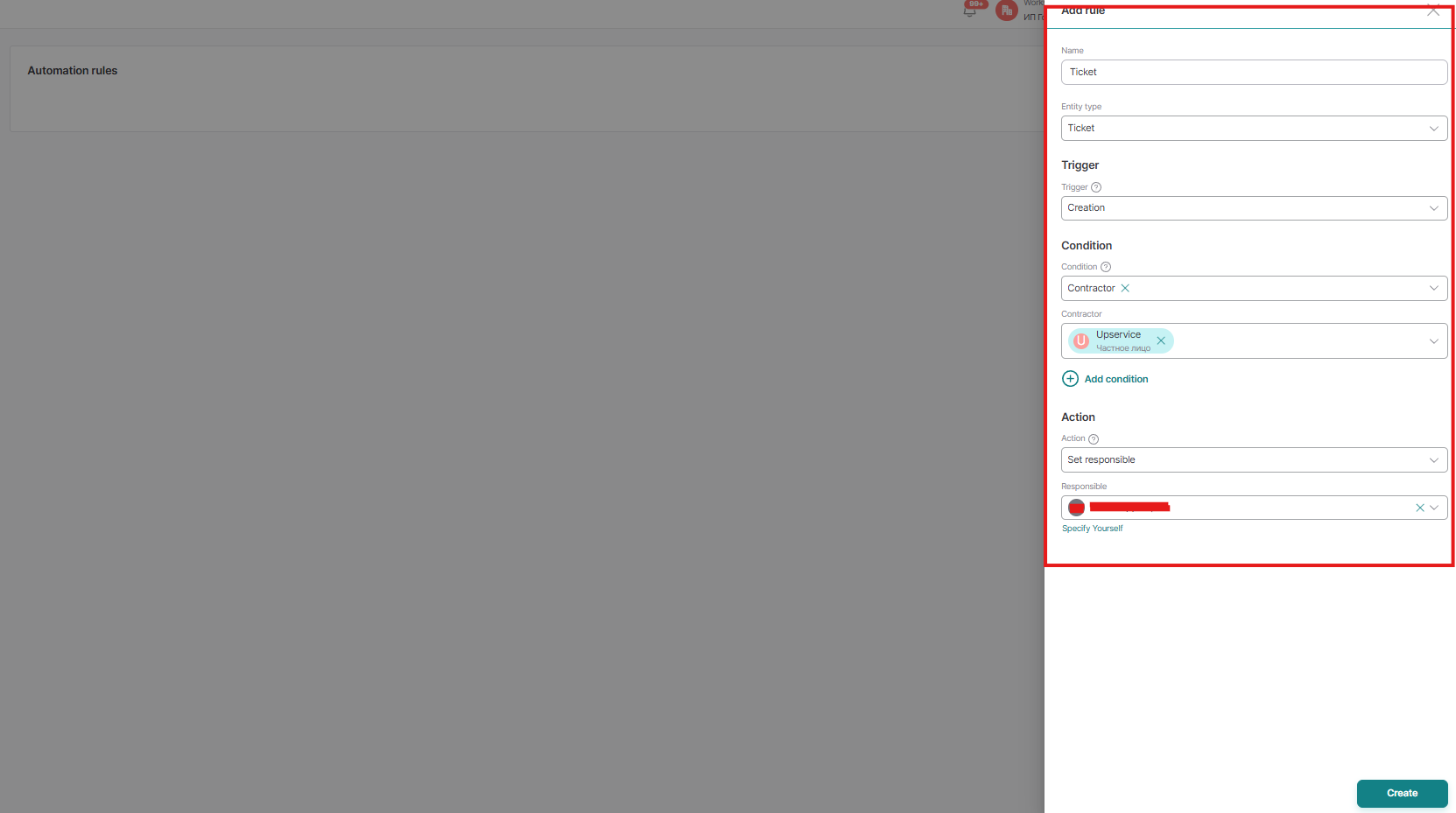
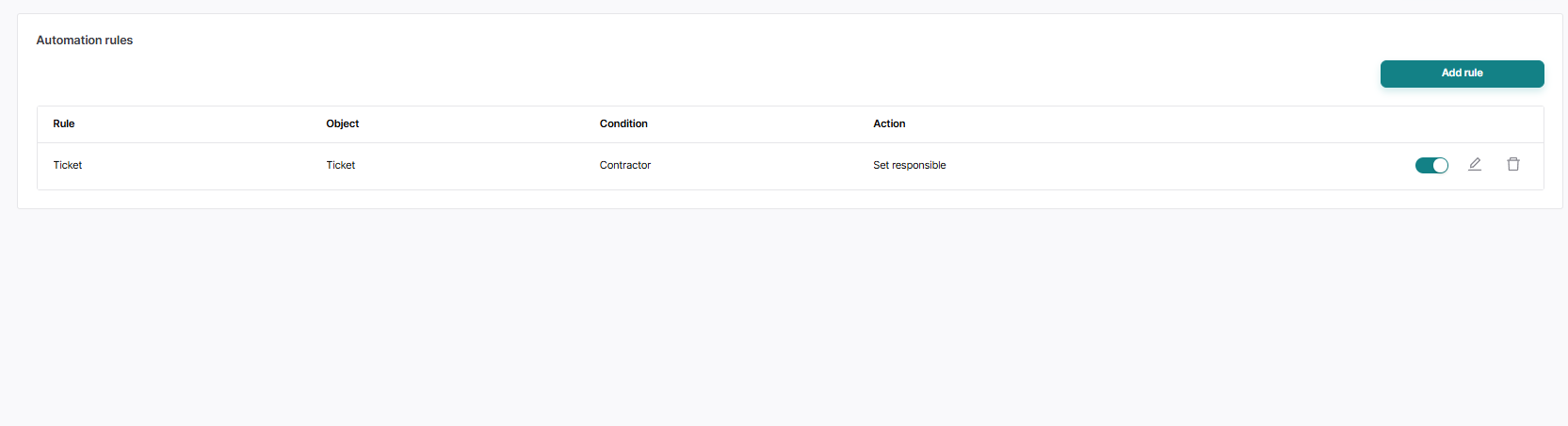
And click the Create button. Now you have a new counterparty rule:
Please note:
- Automation rules are executed from top to bottom
- If the AI assistant is enabled for a channel/contact, the automation rules do not apply.
Let's now take a closer look at exactly what rule we created:
When a ticket is created and the counterparty (Selected counterparty) is selected, a responsible person (Selected responsible person) is assigned.
That is, if you need a specific person responsible for working with a specific counterparty, you can do this using this rule.
When a ticket is created and the counterparty (Selected counterparty) is selected, a responsible person (Selected responsible person) is assigned.
That is, if you need a specific person responsible for working with a specific counterparty, you can do this using this rule.