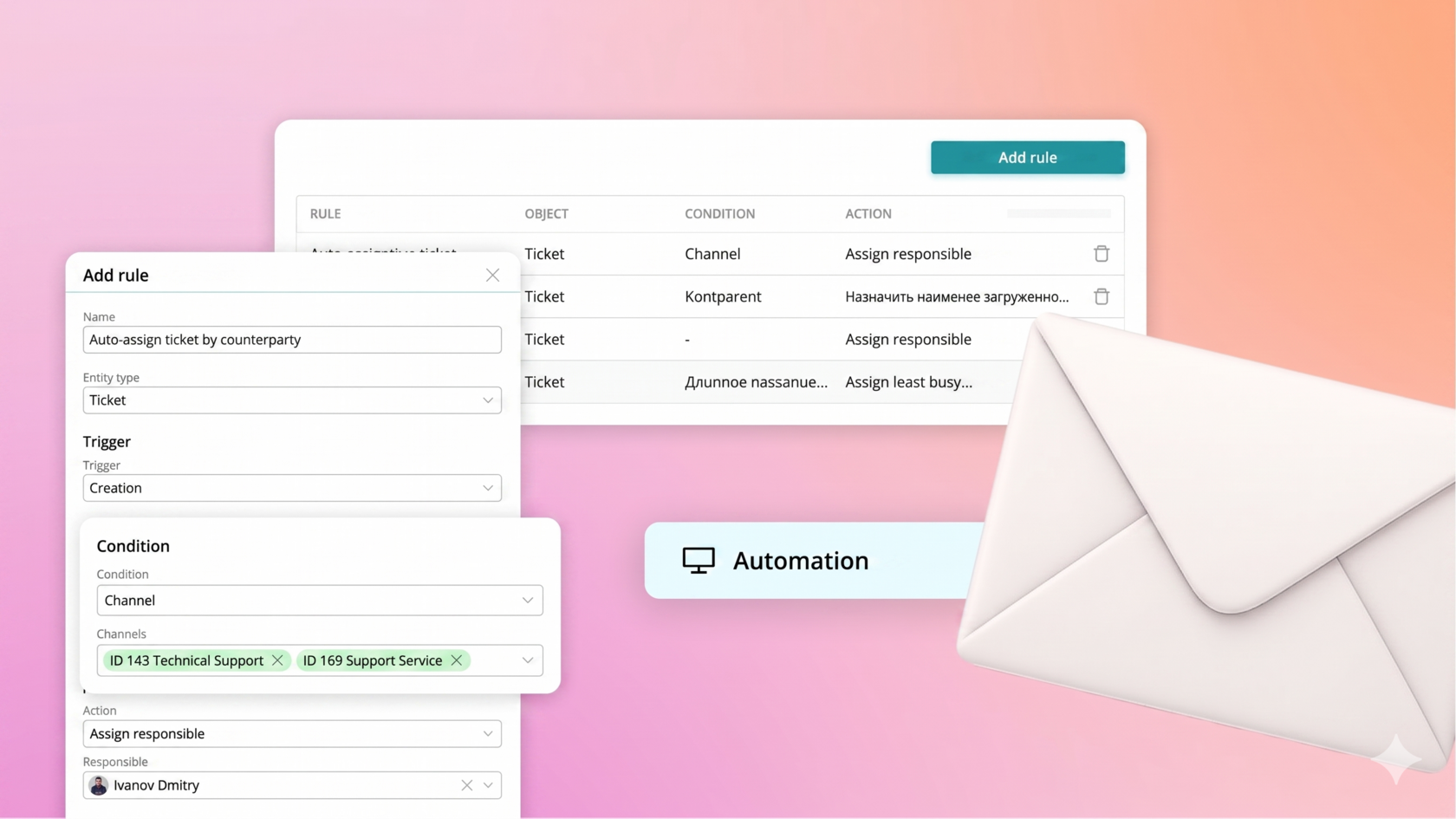
We understand that each company has its own rules for appointing responsible persons depending on various conditions.
In the "Automation" block, you can assign ticket responsibilities based on specific parameters. How do you do this?
In the "Automation" block, you can assign ticket responsibilities based on specific parameters. How do you do this?
First, you need to go to settings:
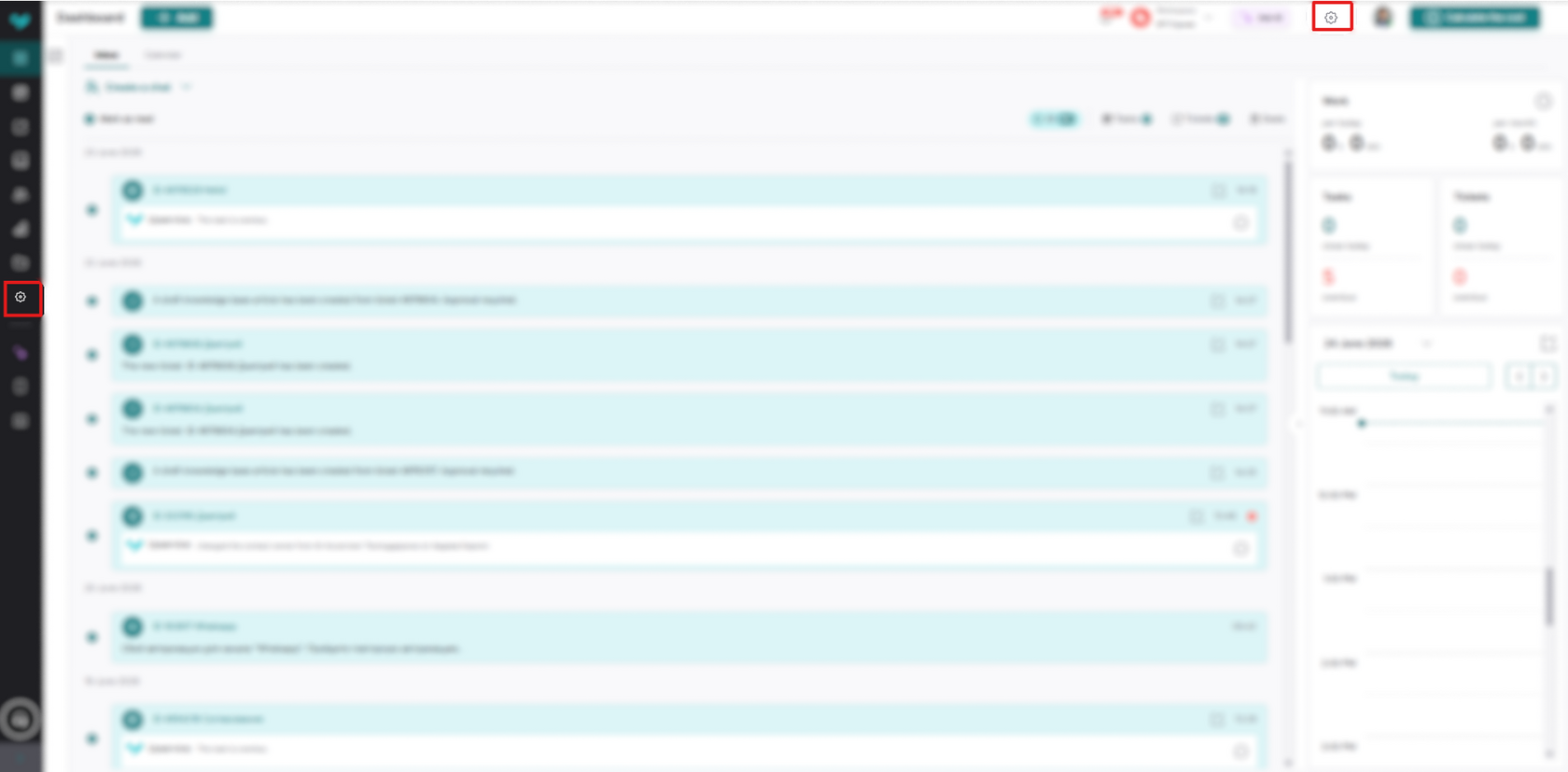
Next, click on the "Automation" block. Here you can see all the rules you've already created:
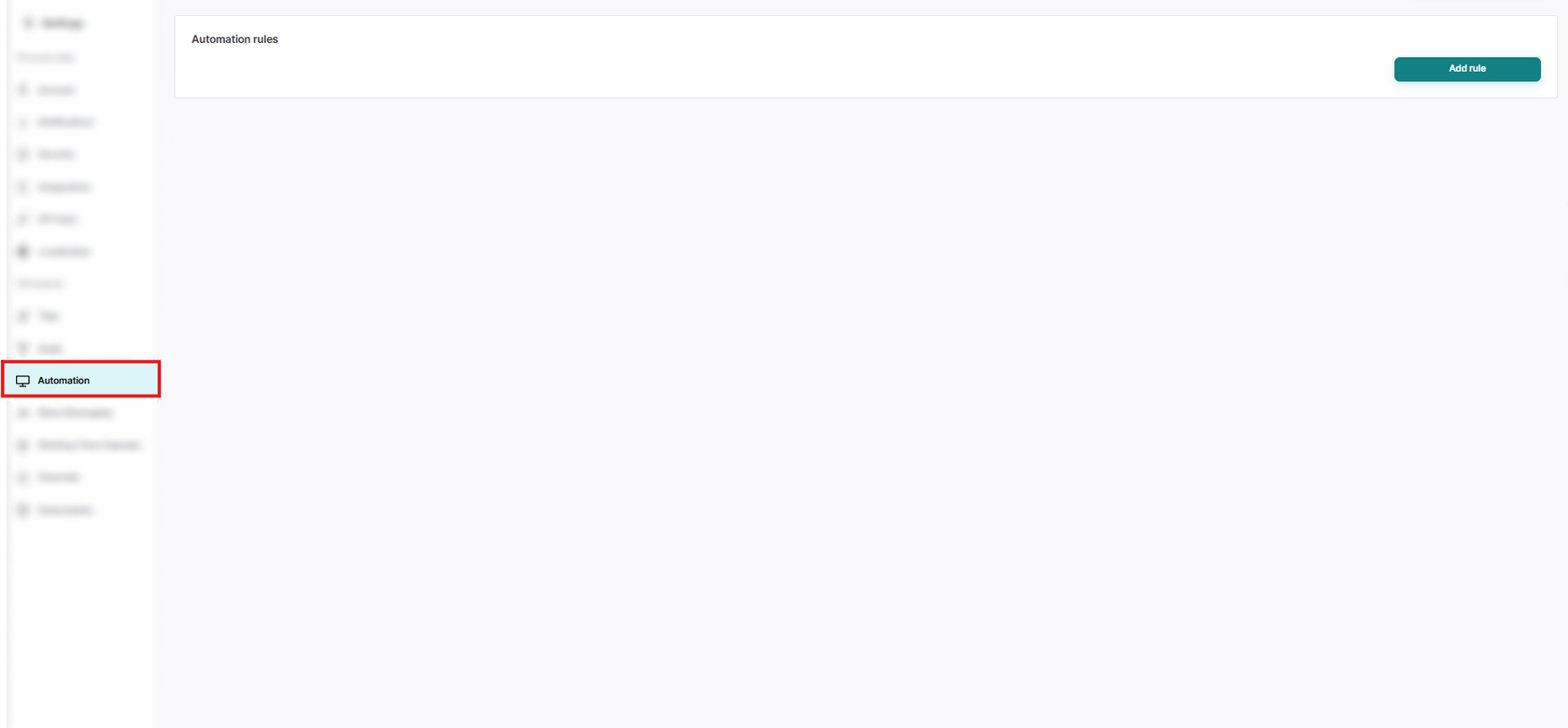
To create a rule, you need to click on the "Add rule" button:
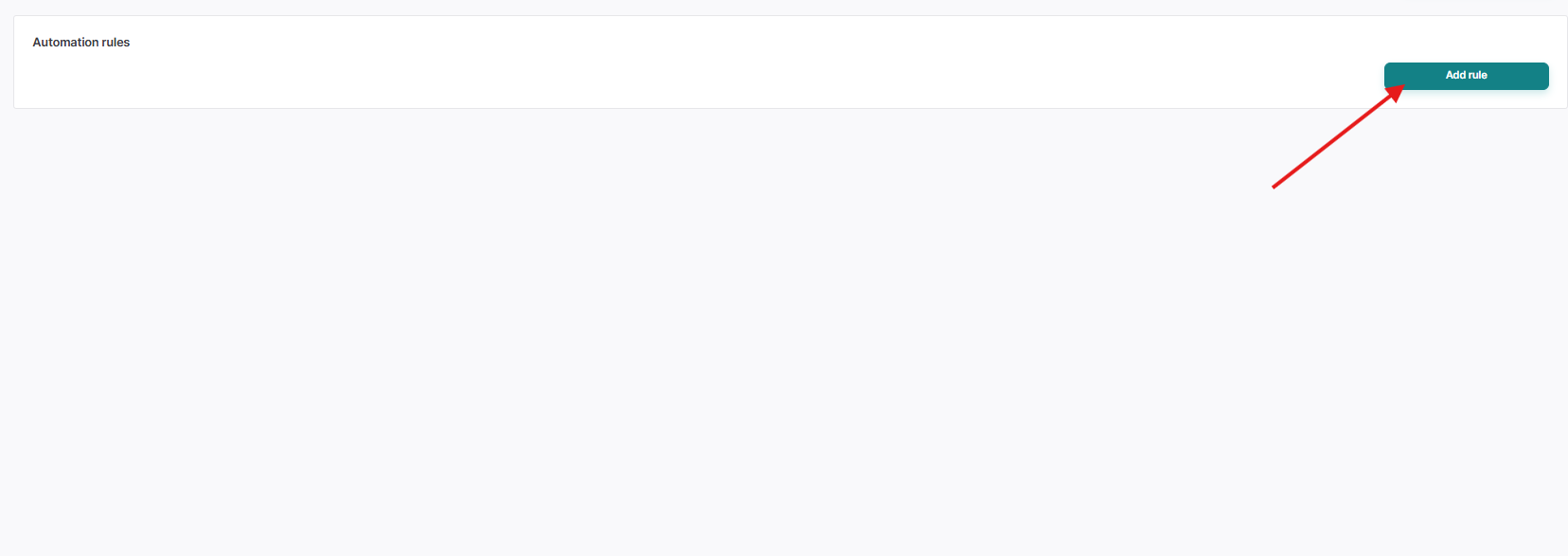
And fill in fields such as:
- Rule name
- Trigger (The event that triggers the rule)
- Condition (The condition that determines when the rule applies)
- Select the required communication channels
- Action (What to do if the trigger is triggered and the conditions are met)
- Select a responsible person
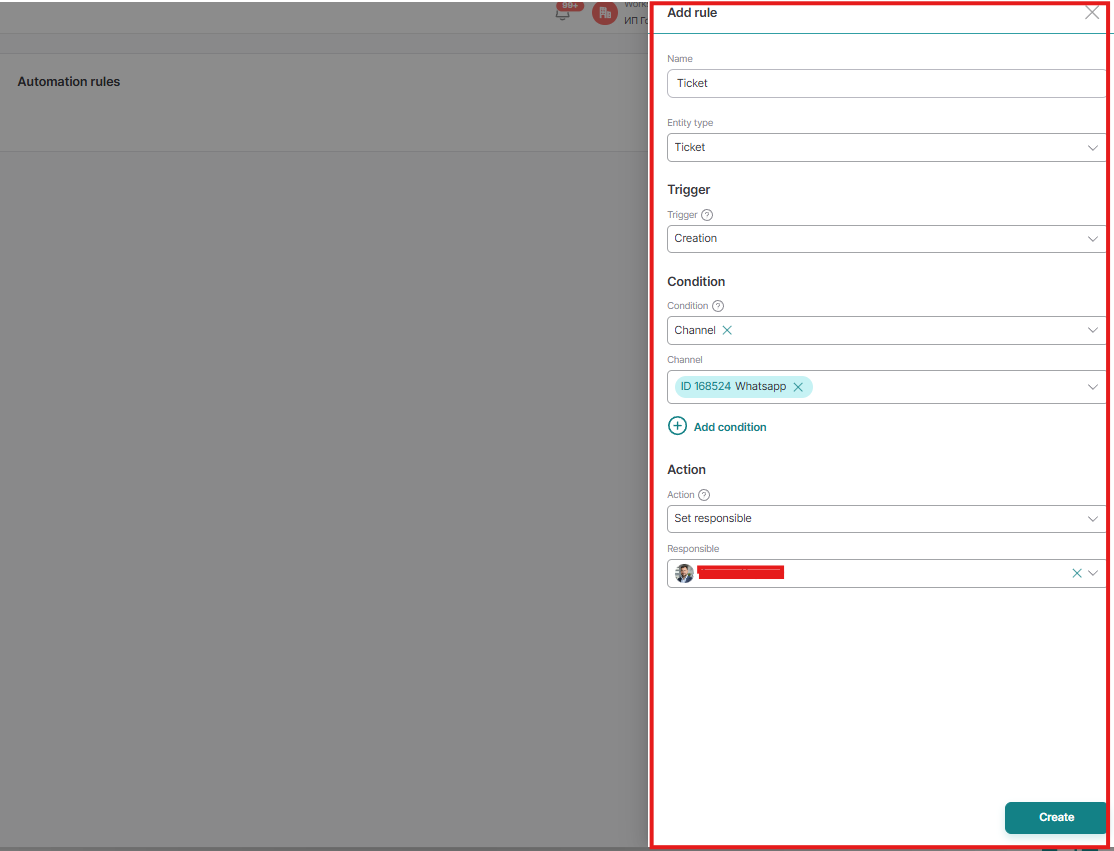
And click the Create button. Congratulations, you've created your first automation rule!
Let's now take a closer look at exactly what rule we created:
When creating a ticket, a responsible person (Selected responsible person) will be assigned to the channel (Selected channel)
When creating a ticket, a responsible person (Selected responsible person) will be assigned to the channel (Selected channel)
That is, if you need a specific person responsible for a specific channel to be assigned, you can do this using this rule.