How to connect your email to Upservice
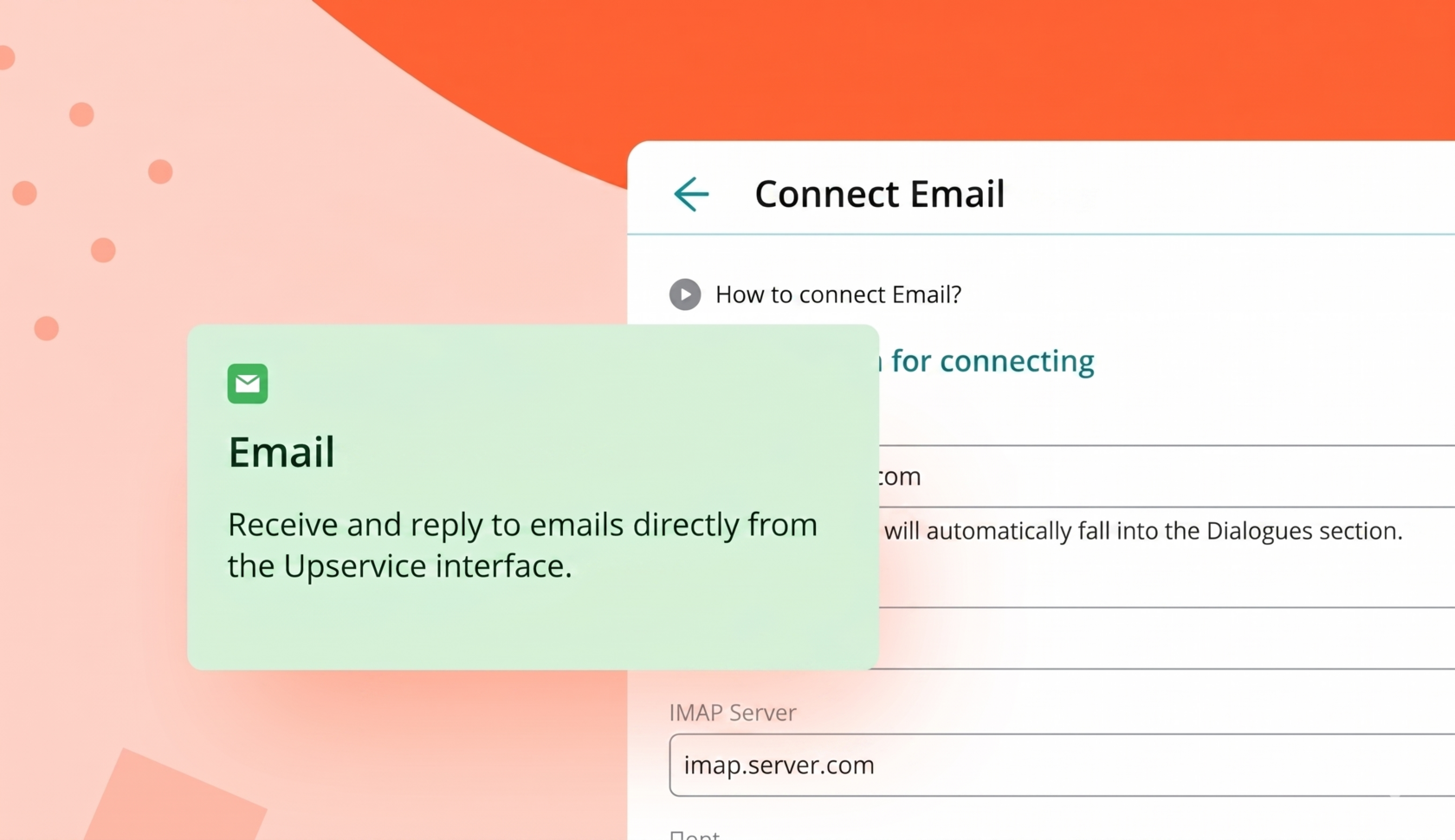
Upservice allows you to connect your email so that you can respond to users who send you emails from the system interface.
Select the email you use:
- Gmail.com;
- Mail.ru;
- Yandex.ru;
- Rambler.ru;
- Outlook.com;
- Yahoo.com;
- iCloud.com.
Connect any number of email accounts, and all client emails will be sent to Upservice. For example, if you have one email address for customer support and another for order intake, you won't have to switch between them. You'll receive requests from all your email accounts in a single app.
Operators will receive notifications about every new email and will not miss a single client request, even if the Upservice tab is closed.
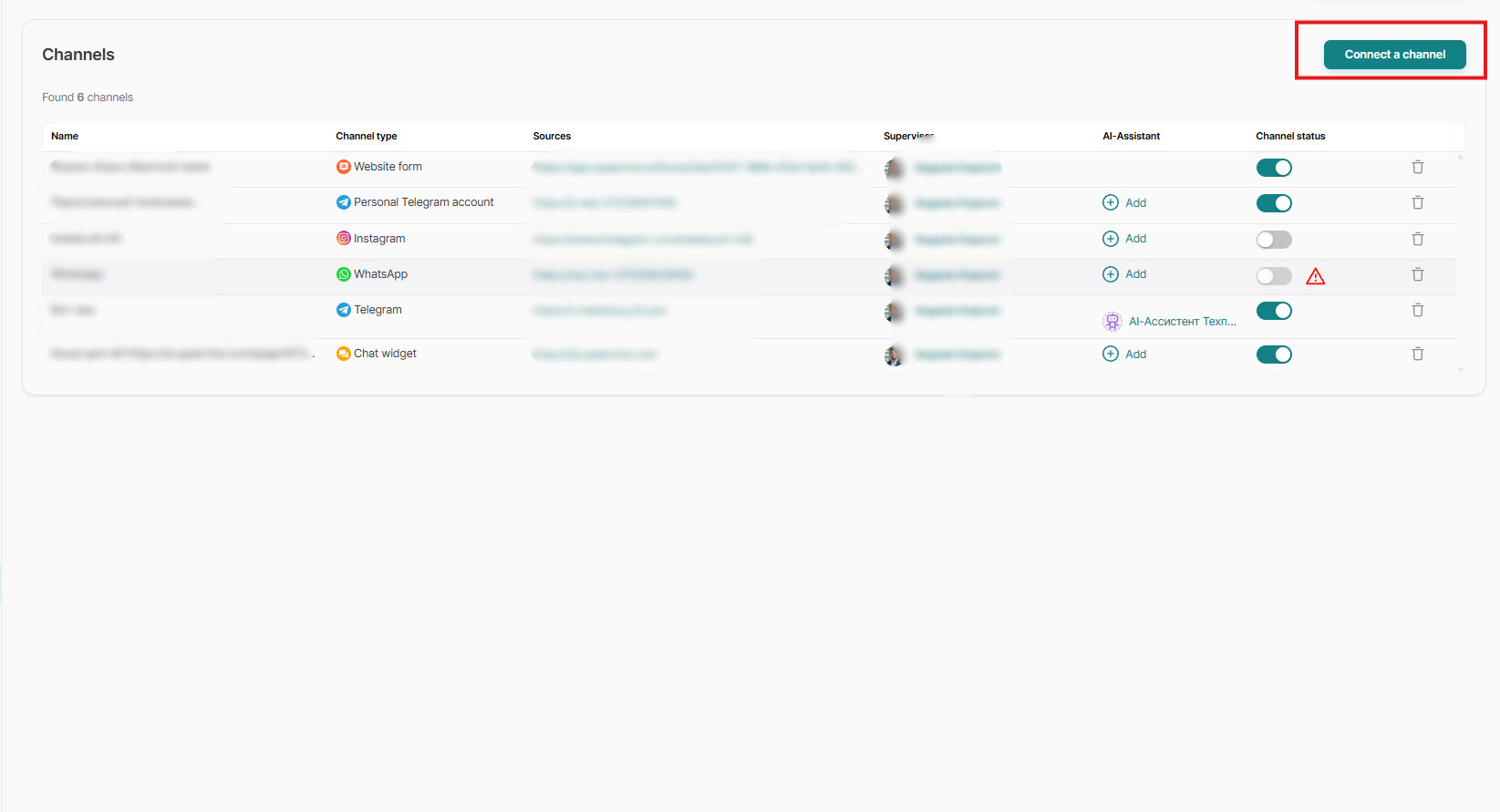
To connect Email in Upservice, you need to go to the "Settings" section, then go to the "Channels" tab, click the "Connect channel" button:
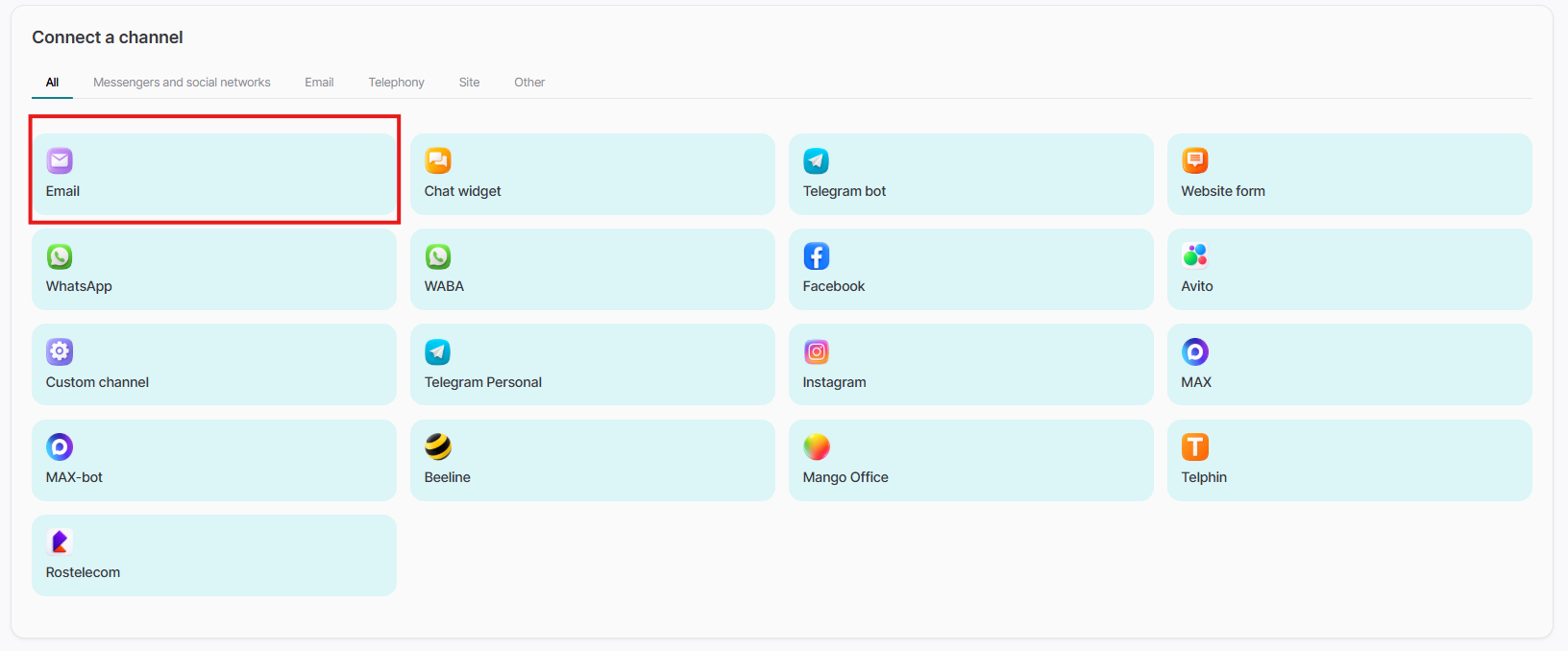
Select the channel type "Email":
If you use a different email address or are having trouble figuring out your settings, please contact us and we'll help.
An application password is used to connect mail.
Please note, this is not your email password!
Connecting Gmail
Step 1: Enable IMAP access.
1. Log into your Gmail account on your computer.
2. In the upper right corner, click on the “Settings” icon, then “All settings”.
3. Open the "Forwarding and POP/IMAP" tab.
4. In the IMAP Access section, select Enable IMAP.
5. Click "Save Changes".
Step 2: Use the following information to fill in the fields in Upservice.
To create an app password, two-factor authentication must be enabled on your Gmail account. Without this requirement, you won't be able to connect your email to Upsrvice.
To enable two-factor authentication, follow this link .
Email address
Your mailing address
Incoming mail server (IMAP server)
imap.gmail.com
Outgoing mail server (SMTP server)
smtp.gmail.com
Password
Your gmail.com app password (not your email password). To create an app password, use this link.
Enter the name of the application in the field and click Create.
Port
IMAP — 993 (SSL/TLS encryption protocol)
SMTP - 465 (SSL encryption protocol)
SMTP — 587 (TSL/STARTTLS encryption protocol)
Please note! When connecting, you use an APPLICATION PASSWORD, not an EMAIL PASSWORD. Learn about an app password and how to set one here.
Connecting Mail.ru email
Step 1: Set a password for the external application.
1. Go to Mail ID settings → Security.
2. In the Sign-in methods area, go to Passwords for external applications.
3. Click the "Create" button next to "External application password".
4. In the "New password for external application" window, add a password name, for example "Upservice office", and click the "Continue" button.
5. Select "Full mail access" and click the "Continue" button.
6. Next, confirm that this is your account.
7. Copy the password.
Step 2: Use the following information to fill in the fields in Upservice.
Email address
Your mailing address
Incoming mail server (IMAP server)
imap.mail.ru
Outgoing mail server (SMTP server)
smtp.mail.ru
Password
Your password for the external application (the one you created in the first step).
Port
IMAP — 993 (SSL/TLS encryption protocol)
SMTP - 465 (SSL encryption protocol)
SMTP — 465 (SSL/TLS encryption protocol)
Connecting to Yandex.ru mail
Step 1: Set up your mailbox.
1. Open the "Mail programs" section in Yandex.Mail settings.
2. Select the options "From the imap.yandex.ru server via IMAP protocol" and "App passwords and OAuth tokens".
3. Click the "Save Changes" button.
Step 2: Create an app password
1. Open the "Account Management" page in Yandex.Mail settings.
2. In the Security section, go to App passwords.
3. Next, in the "Create app password" area, select the "Mail" application type.
4. Create a name for the password, such as the name of the app you're creating the password for. This name will appear in the list.
5. Click "Next." The app password will be displayed in a pop-up window.
Step 3: Use the following information to fill in the fields in Upservice.
Email address
Your mailing address
Incoming mail server (IMAP server)
imap.yandex.ru
Outgoing mail server (SMTP server)
smtp.yandex.ru
Password
Your Yandex.ru app password (the one you created in step two).
Port
IMAP — 993 (SSL/TLS encryption protocol)
SMTP - 465 (SSL encryption protocol)
Connecting to Rambler.ru mail
Step 1: Enable IMAP access.
1. Log into your Rambler email on your computer.
2. Go to Settings → Applications.
3. Set the "Access your mailbox using email clients" switch to "On." The setting will be saved automatically.
Step 2: Use the following information to fill in the fields in Upservice.
Email address
Your mailing address
Incoming mail server (IMAP server)
imap.rambler.ru
Outgoing mail server (SMTP server)
smtp.rambler.ru
Password
Your password for Rambler.ru mail.
Port
IMAP - 993 (SSL encryption protocol)
SMTP - 465 (SSL encryption protocol)
Connecting to Outlook.com Mail
Step 1: Enable IMAP access.
1. Log into your Outlook.com email on your computer.
2. Select Options → Forwarding & IMAP.
3. In the POP and IMAP settings section, drag the sliders "Configure the use of the POP protocol for devices and applications" and "Enable the use of the IMAP protocol for devices and applications" to the right.
4. Click Save.
Step 2: Use the following information to fill in the fields in Upservice.
Email address
Your mailing address
Incoming mail server (IMAP server)
outlook.office365.com
Outgoing mail server (SMTP server)
smtp.office365.com
Password
Your Outlook email password
Port
IMAP - 993 (SSL encryption protocol)
SMTP - 587 (TLS encryption protocol)
Connecting Yahoo.com Mail
Step 1: Enable IMAP access.
1. Log in to your Yahoo Mail.
2. Go to the "Account Security" settings.
3. Enable Allow apps that use less secure sign in.
4. Create an app password. Select "Other ways to sign in," then "Generate and manage app passwords."
Step 2: Use the following information to fill in the fields in Upservice.
Email address
Your mailing address
Incoming mail server (IMAP server)
imap.mail.yahoo.com
Outgoing mail server (SMTP server)
smtp.mail.yahoo.com
Password
Your Yahoo app password
Port
IMAP - 993 (SSL encryption protocol)
SMTP — 465/587 (SSL/TLS encryption protocol)
Connecting iCloud.com Mail
Step 1: Create a password for the program.
1. Sign in to your Apple ID account at appleid.apple.com. Enter the verification code sent to your phone.
2. Under Sign-in and security, click App passwords.
3. Click the "Create app password" button, enter any name (we recommend using "Mail"), and click the "Create" button.
4. Enter your Apple ID account password again, then click the "Save" button.
Step 2: Use the following information to fill in the fields in Upservice.
Email address
Your mailing address
Incoming mail server (IMAP server)
imap.mail.me.com
Outgoing mail server (SMTP server)
smtp.mail.me.com
Password
Your app password created in your Apple ID account
Port
IMAP - 993 (SSL encryption protocol)
SMTP - 587 (SSL encryption protocol)
If you receive an error message when using SSL, try using TLS or STARTTLS.
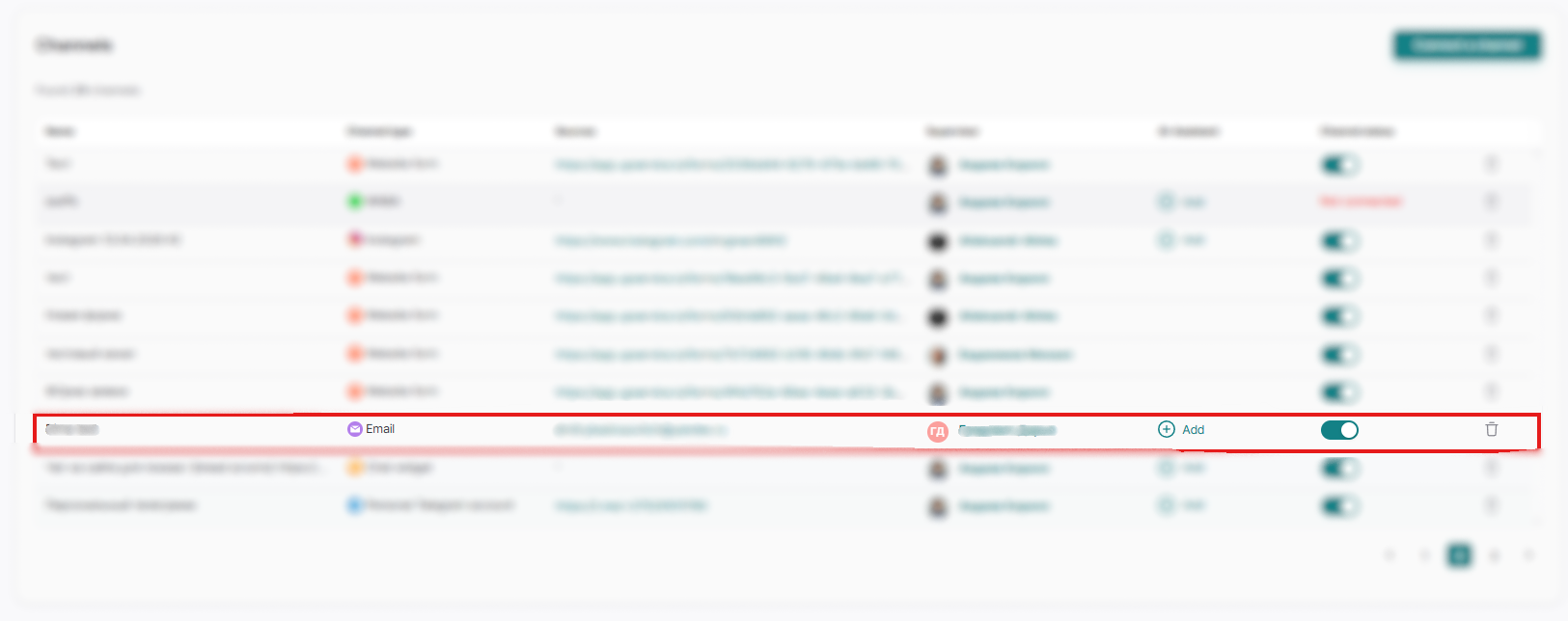
After completing the first step of connecting your email, you'll be taken to the second step, where all your channels will be open. You'll need to open your communication channel for settings:
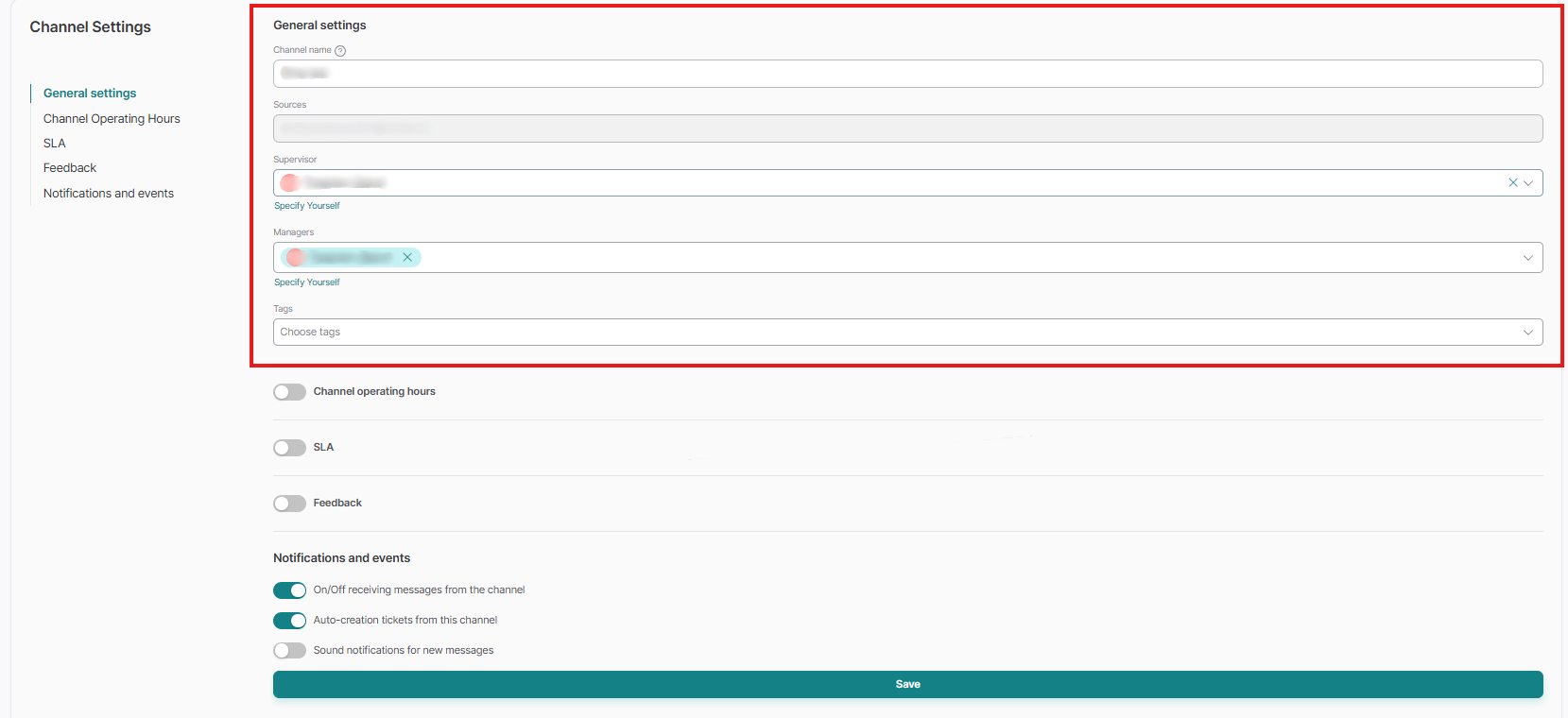
Fill in the fields:
- Channel name — a name that reflects the purpose of the chat. For example, "Facebook for clients" or "Facebook for support". This name is available only to colleagues, clients will not see it;
- Supervisor — this is the only employee who can be assigned to this role. They have the right to add or remove operators, as well as change channel settings and communicate with clients;
- Managers — company employees who will communicate with the users of your site;
- Tags - if you specify any of the tags in the channel, then all subsequent contacts that will be created for you through this channel will immediately arrive with an ALREADY assigned tag. This will be the tag that you selected at the channel creation stage;
To set up the operators' working hours, drag the "Channel operating hours" slider to the right.
In the working hours settings, select the Time zone that will correspond to the working schedule of your company. It is important to select the time zone that matches the location of your office or the place where you provide services.
Next, specify the working days and time when your employees are available to provide consultations in the chat and also immediately set up the "Automatic response outside of business hours":
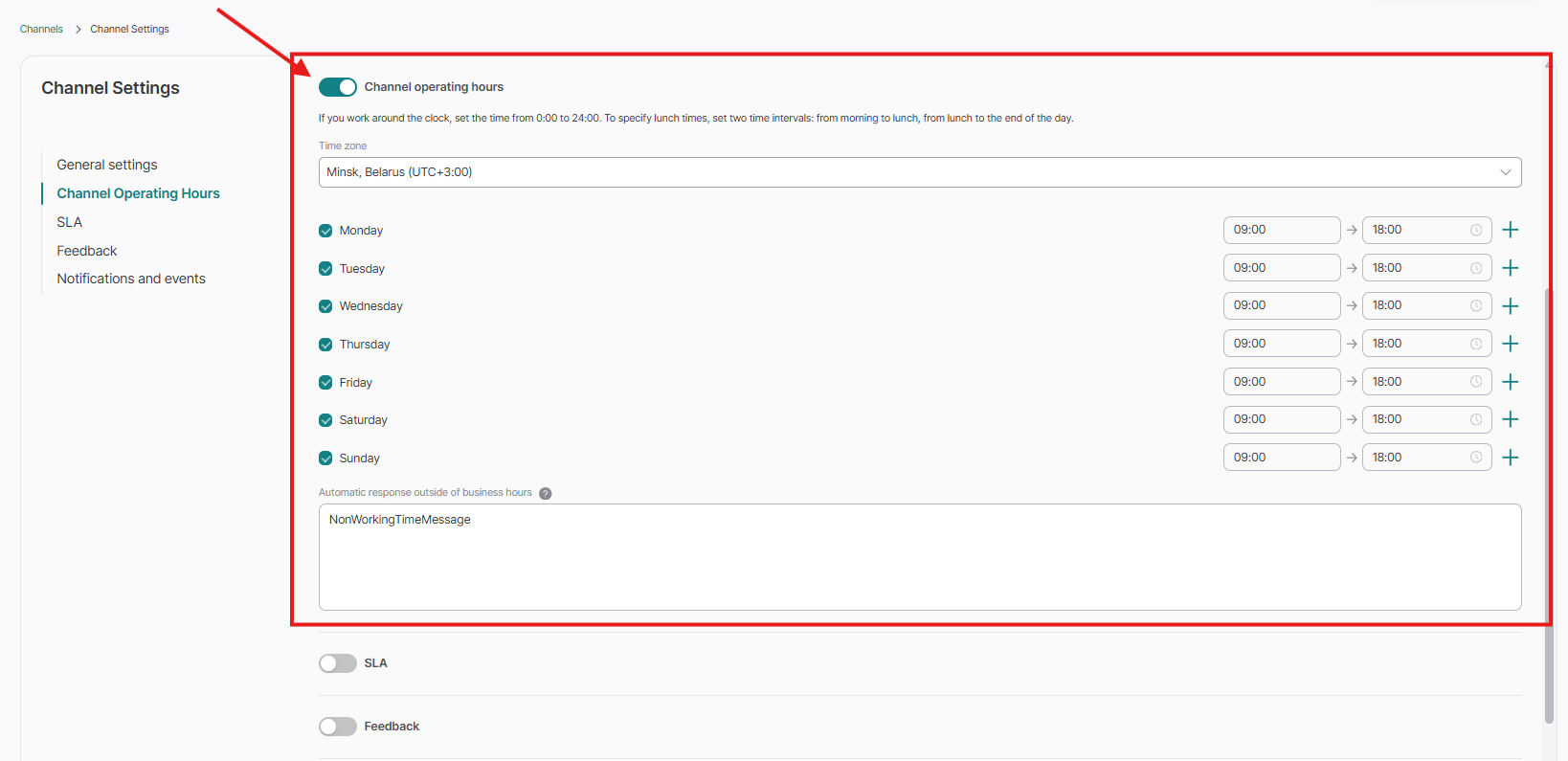
If you work 24/7, set the time from 12:00 AM to 12:00 PM. To specify lunch time, set two time intervals: morning and until lunch, and after lunch and until the end of the workday.
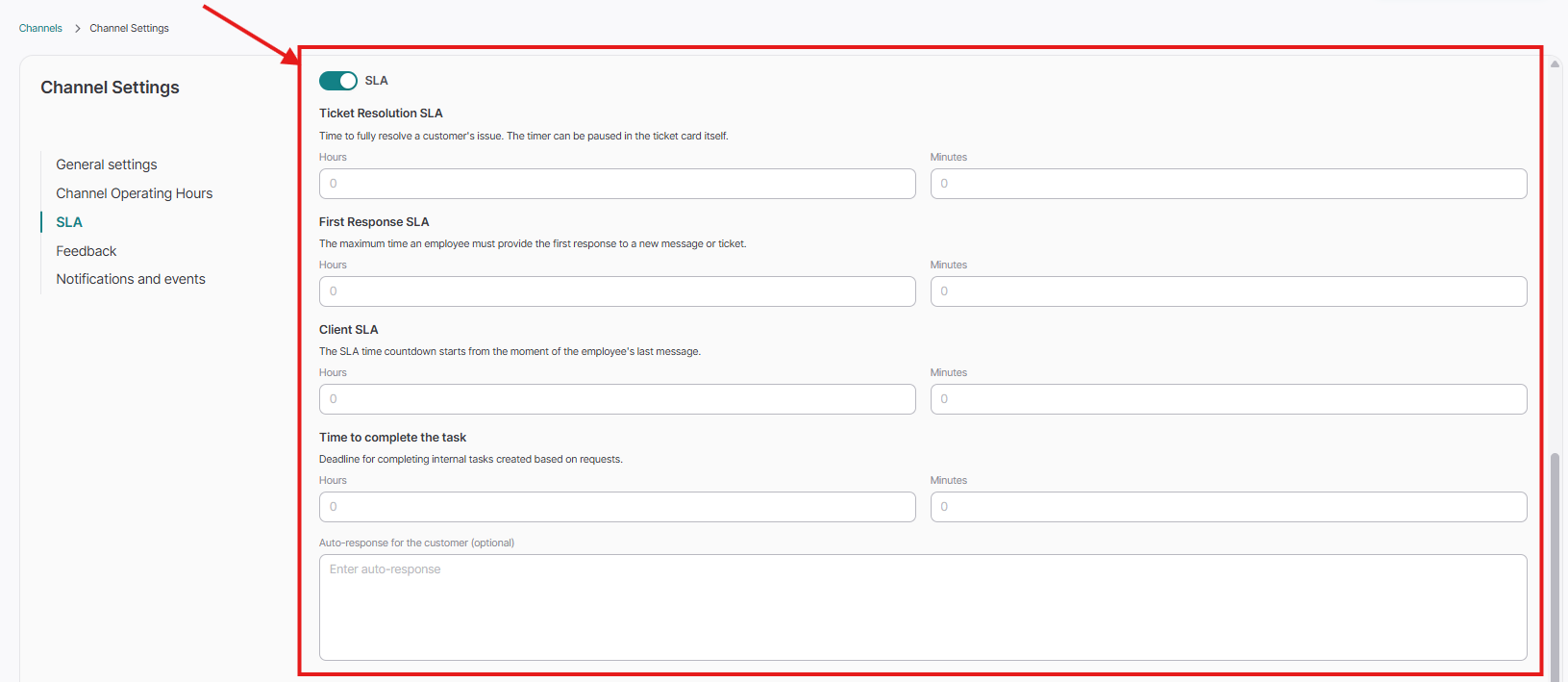
If necessary, enable the SLA function and write down the "Auto-response for the customer". To do this, click on the slider next to "SLA" and type the auto-reply in the field below.
Auto-response for the customer - an auto-reply is an excellent feature for those who have a constant influx of requests from clients and may not have time to process everything at once. The auto-reply will be sent automatically after the client's message, after the amount of time that you specify. It depends on the operator's SLA time. Let's set the operator's SLA to 5 minutes, for example.
In this case, if the operator did not manage to answer the client within 5 minutes, then the auto-reply will be sent to them automatically:
Set up Feedback from your clients.
To do this, activate the "Feedback" slider and specify the time — after what period the system will automatically ask to evaluate the quality of the consultation provided. The evaluation will be sent after the time you specified into the contact, counting from the last message of the client. But if the creation of tickets for this channel is connected, then the evaluation will be sent after you close the ticket with this contact.
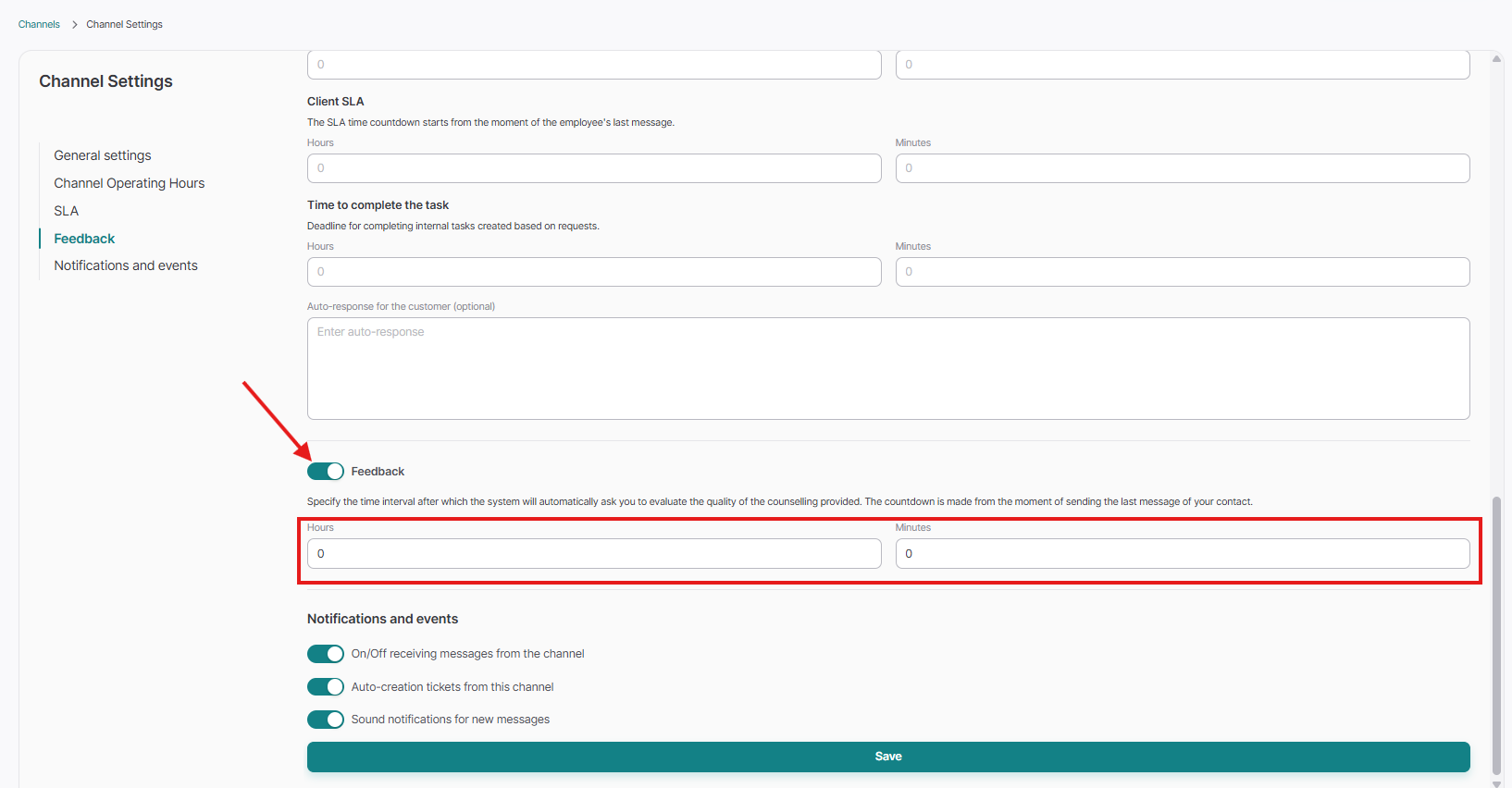
Then we click on the "Save" button and our channel will be successfully saved:
Now the client can write to your Email and you will see his messages in Upservice: