Connecting a personal Telegram account
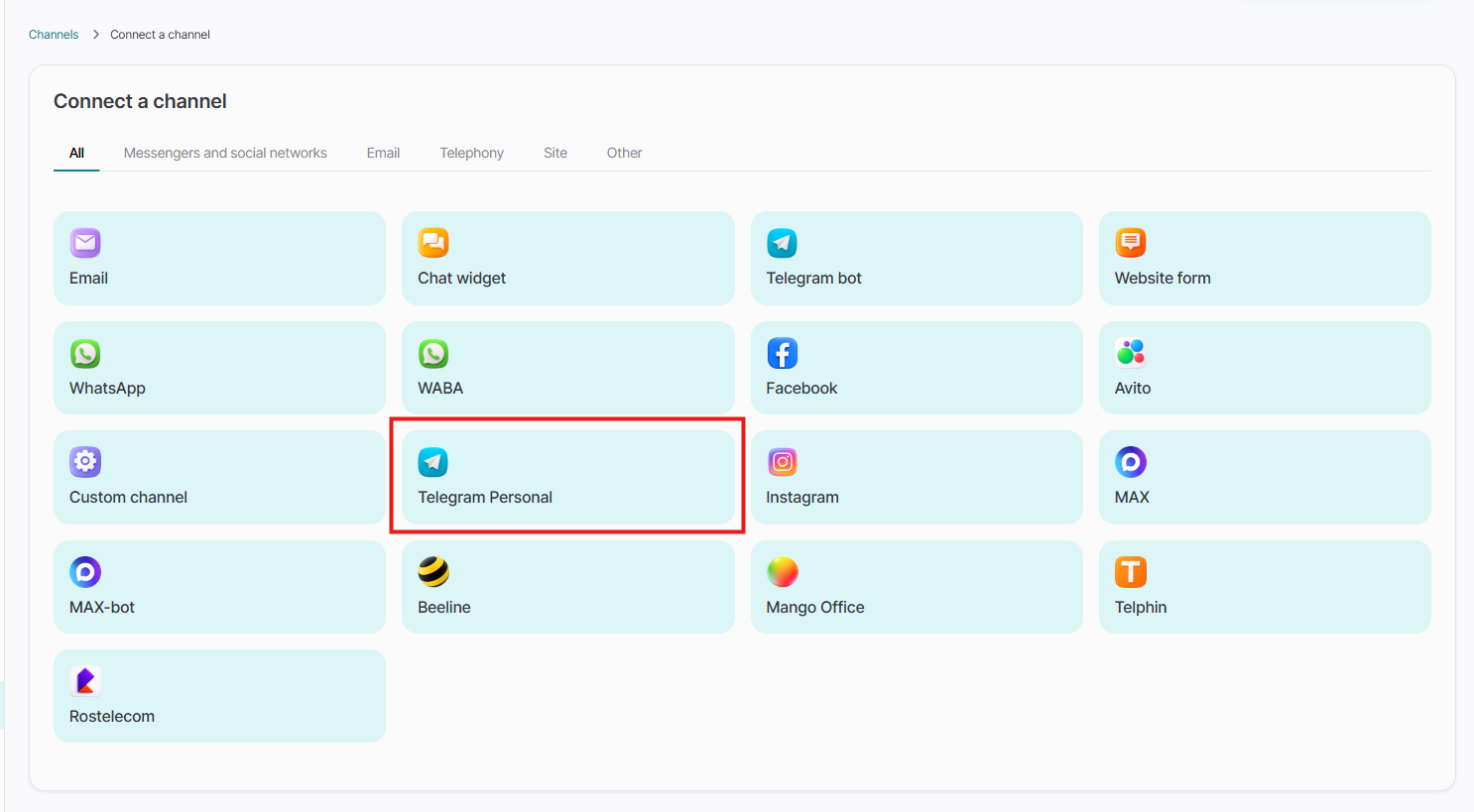
If you need to connect not a Telegram bot, but your personal account (personal Telegram), in this case, on the "Channels" tab, click the "Connect channel" button, and in the window that appears, click the "Telegram Personal" button:
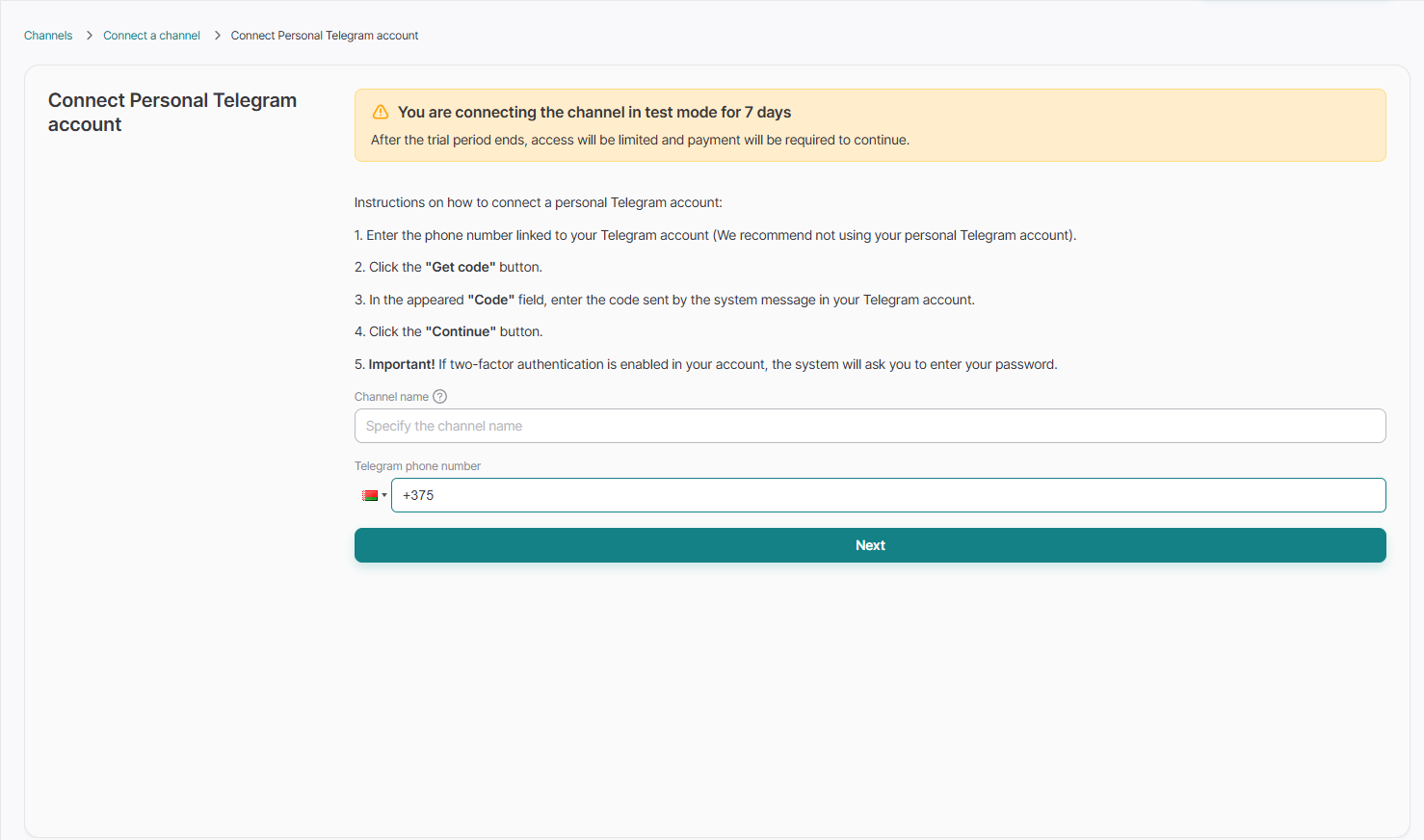
Next, fill in the Channel name field and enter your phone number to which the Telegram account you want to link is registered, and click the "Continue" button:
The next step is to enter the code that will be sent to your phone or to the Telegram account itself. After entering it, you will get into the standard channel settings:
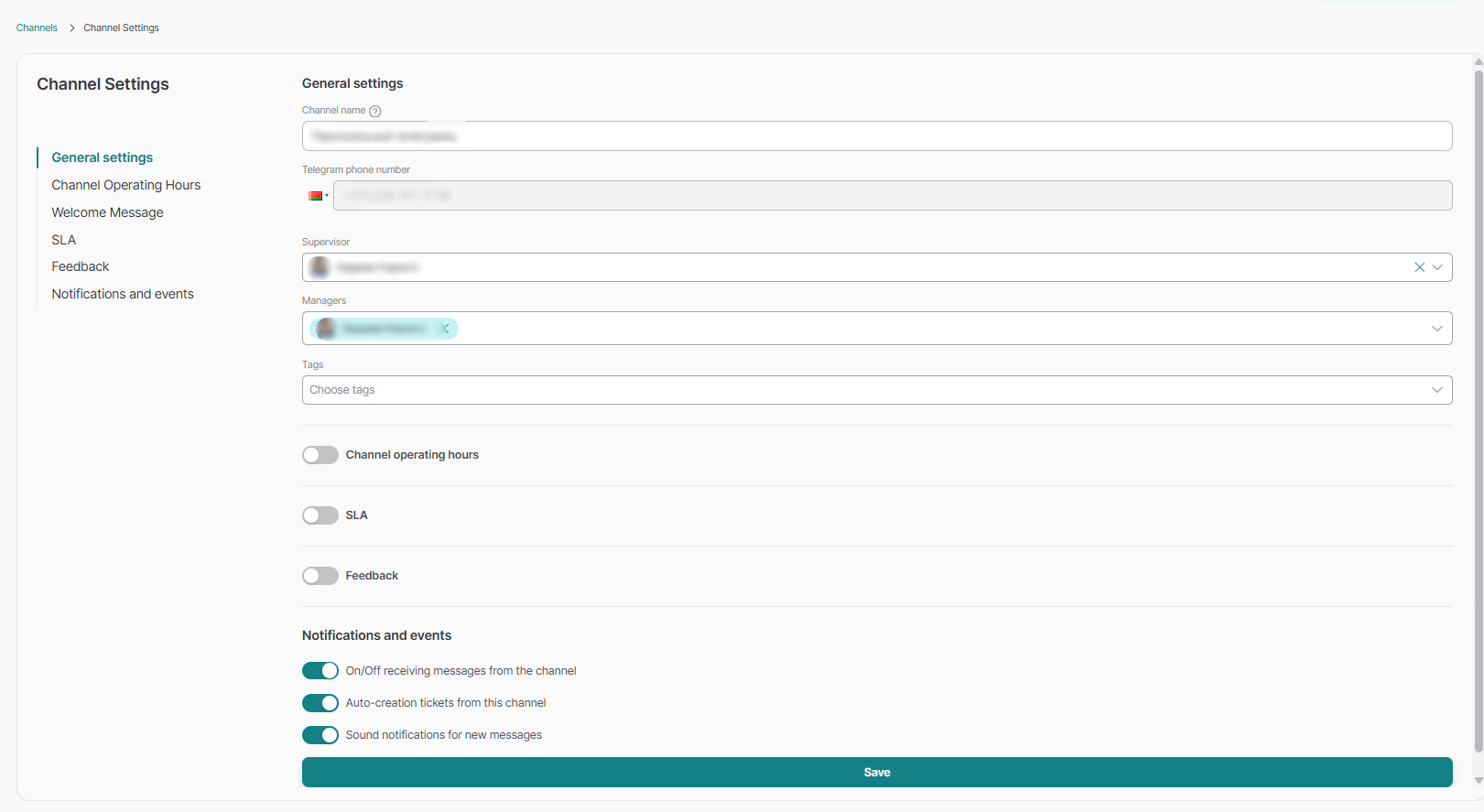
Now you can send and receive messages directly from your personal account.
Telegram group chats and threads in Upservice
Upservice supports working with Telegram group chats and individual threads within these chats. Group chats and their threads are displayed in the interface in a way that makes it convenient to navigate through dialogues, track unread messages, and work with tickets for each thread.
Telegram group chat in Upservice
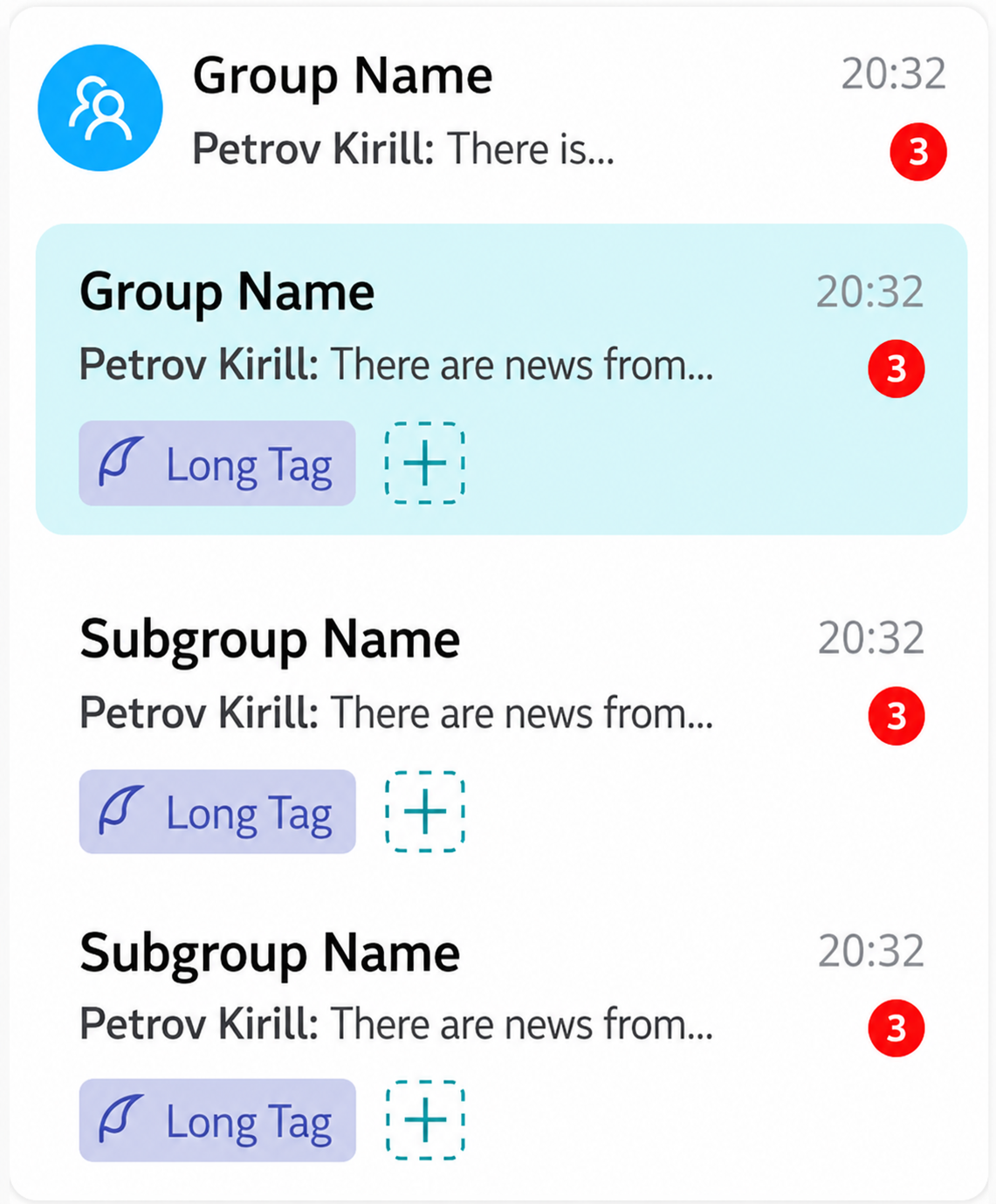
A Telegram group chat in Upservice is a single dialogue within which individual threads (topics/threads) exist. In the interface, such a chat is displayed as a separate group with its own group chat icon.
Key features of a group chat in Upservice:
- group chats are displayed with a separate icon distinguishing them from regular dialogues;
- the General chat in Telegram is displayed with the same name as the group chat itself;
- each participant in the correspondence is identified by their full name or nickname (if the full name is unavailable).
Displaying threads in a Telegram group chat
Within one Telegram group chat, there can be several threads. In Upservice, all threads of one group chat are visually combined into a single group.
The logic for displaying threads is as follows:
- if there is only one chat (one thread) in the group chat, the threads are not displayed in the list — you see the group chat as a regular dialogue;
- threads start to be displayed only when there is strictly more than one (">1");
- all threads of a single group chat are displayed within a single group under the main row of the group chat.
Expanding and collapsing the thread list
A group chat in the list works like a dropdown list. This allows you to quickly manage the display of threads without overloading the interface.
Group chat behavior when clicked:
- · upon the first click on the main row of the group chat, the thread list expands, and the cursor is placed in the first chat of the group;
- upon clicking the main row of the group chat again, the thread list collapses;
- by default, the group chat is displayed in an expanded state.
The system remembers the "Collapsed/Expanded" state for each user based on the filter principle: if you collapsed a specific group chat, the next time you enter the chats section, it will remain collapsed specifically for you.

Information in the main row of the group chat
The main row of the group chat contains a brief summary of activity in this group chat so you can quickly assess the situation without expanding the threads.
The main row of the group chat displays:
- the participant who sent the last message in this group chat;
- the last unread message (a text snippet);
- a counter of the total number of unread chats (threads) within this group chat.
This helps you understand which threads still have unread messages and quickly navigate to the desired thread.
Assignees and tickets by threads
Each thread in a Telegram group chat in Upservice is processed as a separate ticket. One thread means one ticket and one separate contact.
At the same time, assignees for each thread are not displayed in the list of threads and group chats to avoid overloading the interface. The assignee for a thread is visible only inside the card of the thread itself.
Communication channels in a Telegram group chat
Within a Telegram group chat in Upservice, only relevant communication channels are available.
In a group chat, you can only write via:
- the "Telegram bot" channel;
- the "My comment" channel (internal comment).
Other communication channels (email, phone, etc.) are not displayed in the group chat and are unavailable for selection when sending messages.