WhatsApp Business
Connecting a channel, working with messages in an open session, and sending templates.
This article summarizes the basic rules for working with WhatsApp Business in Upservice: how to connect a channel, when you can send regular messages, when you need to use templates, and what restrictions are important to consider.
1. What connecting WhatsApp Business gives you
After connecting the channel, you will be able to correspond with clients from Upservice without switching to separate WhatsApp windows. The channel is suitable for both answering incoming messages and for the first initiation of a dialogue through pre-approved templates.
- answer the client in the contact card via the selected WhatsApp Business channel;
- send regular text messages when the session is open;
- send message templates when the session is closed or when you need to start a dialogue first;
- use a single Upservice interface for operators, channel administrator, and working hours settings.
2. What is important to know in advance
Before connecting, make sure you have access to a Meta business account and a WhatsApp Business number that will be used for correspondence. If you don't have a ready account yet, you can create one during the linking process.
It is also important to understand two basic rules of the WhatsApp Business platform:
- regular messages without a template can be sent only during an open 24-hour window after the client's last message; In this case, the window is opened from the user's side, exactly at the moment when your client wrote to you.
- outside this window, only pre-approved message templates are used to start or resume a dialogue.
Detailed Meta rules are described in the official messaging documentation and the templates documentation.
3. How to connect WhatsApp Business
Connecting is done in two steps: first you create a channel in Upservice, then you go through the linking via the Meta window and return to the channel settings.
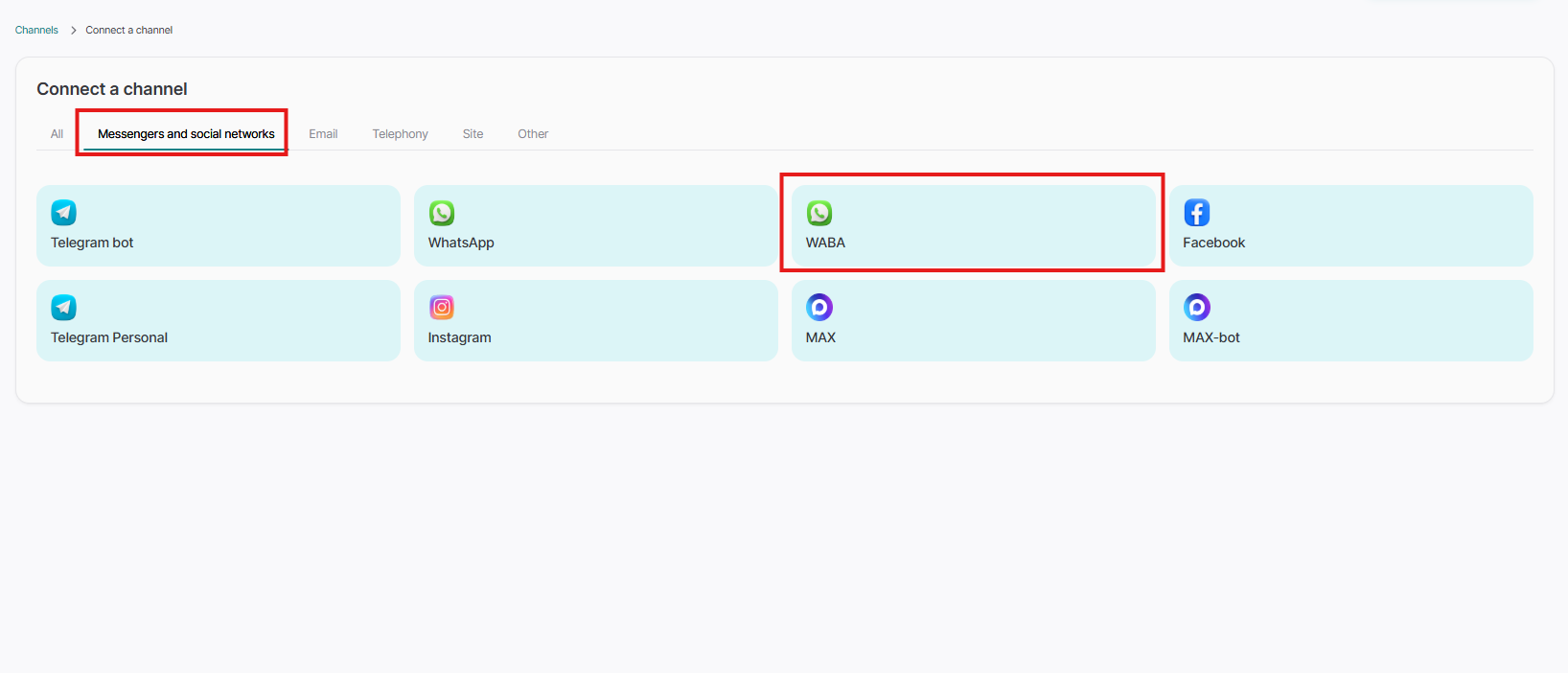
3.1. Open channel connection
In the list of available channels, select WABA. The first step of connection will open.
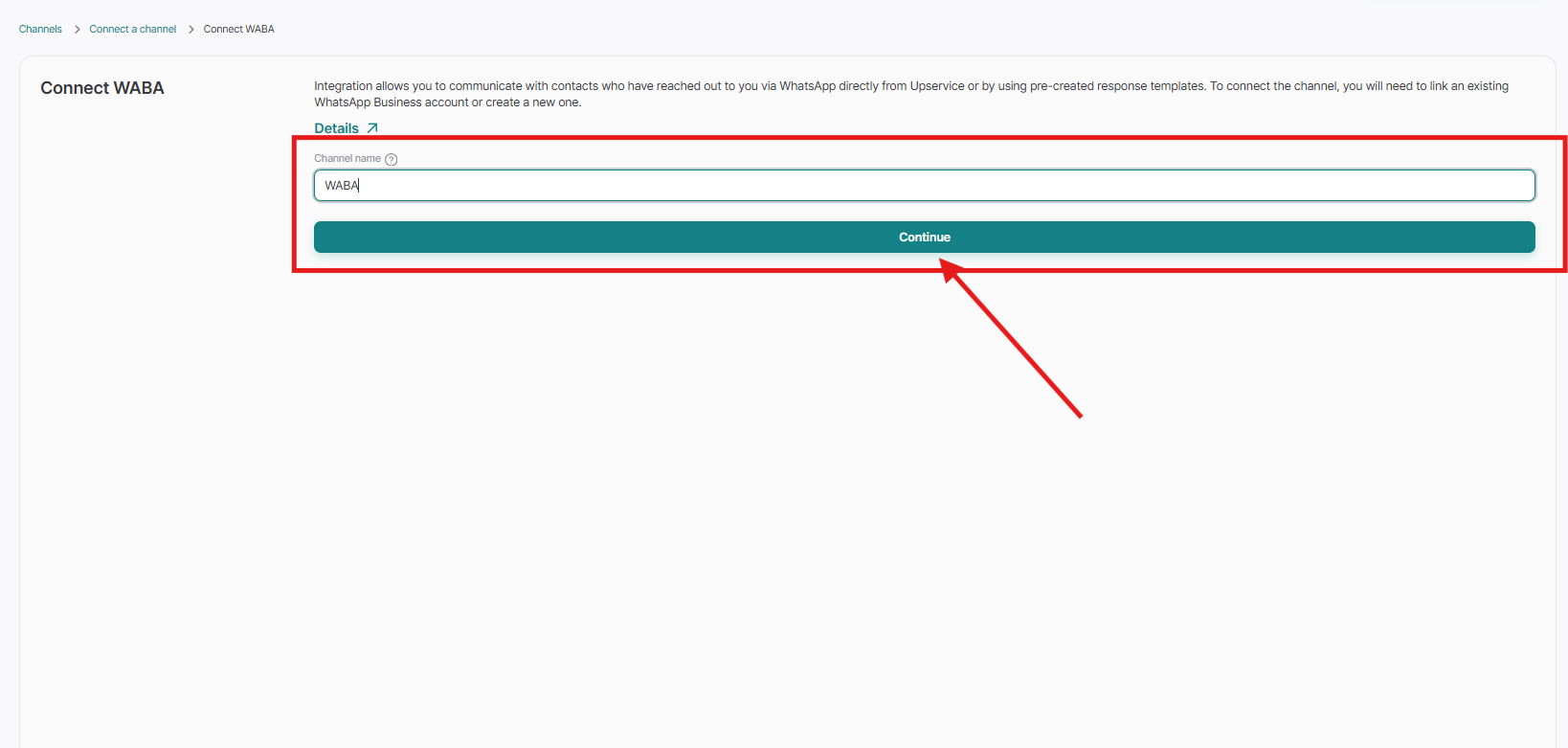
3.2. Fill in the channel name and complete the linking
In the "Channel name" field, specify a clear internal name. It will help distinguish the channel from other connections if you have several of them. After that, click "Continue".
After clicking "Continue", a Meta pop-up will open. In this window, you need to log in to the desired business account, select an existing WhatsApp Business account or create a new one, and confirm the accesses necessary for connection.
If you already have an active WhatsApp Business number, select it during the linking process. If there is no number yet, create a new one and complete the steps of the connection wizard.
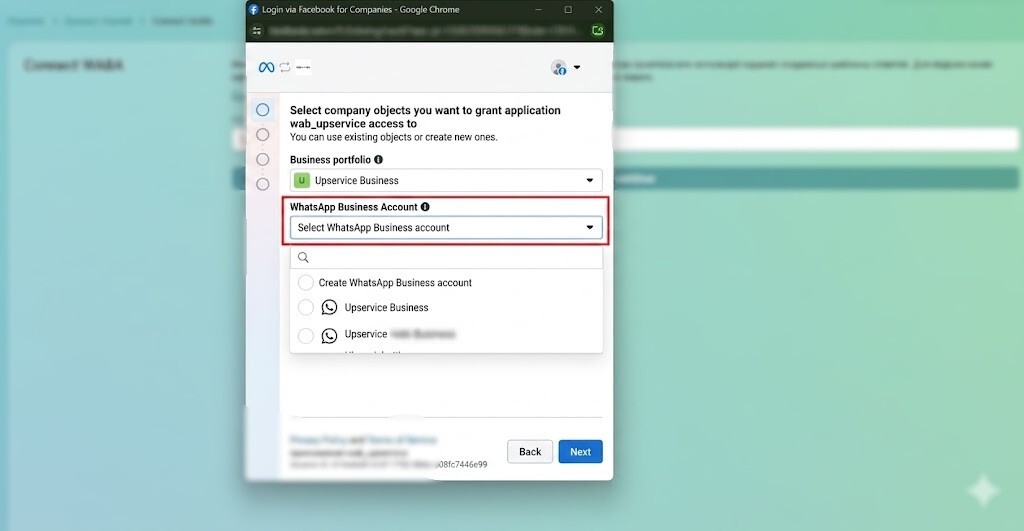
After selecting the phone number - click Next and here you need to select the "Use a new or existing WhatsApp number" field.
In the "Phone number" field - add the phone number from which you want to send messages. If the phone number is already added - just select it in the list.
If you chose to create a new number, you will need to verify it in a way convenient for you:
SMS or Phone call
After verifying or selecting an already existing number - click "Next"
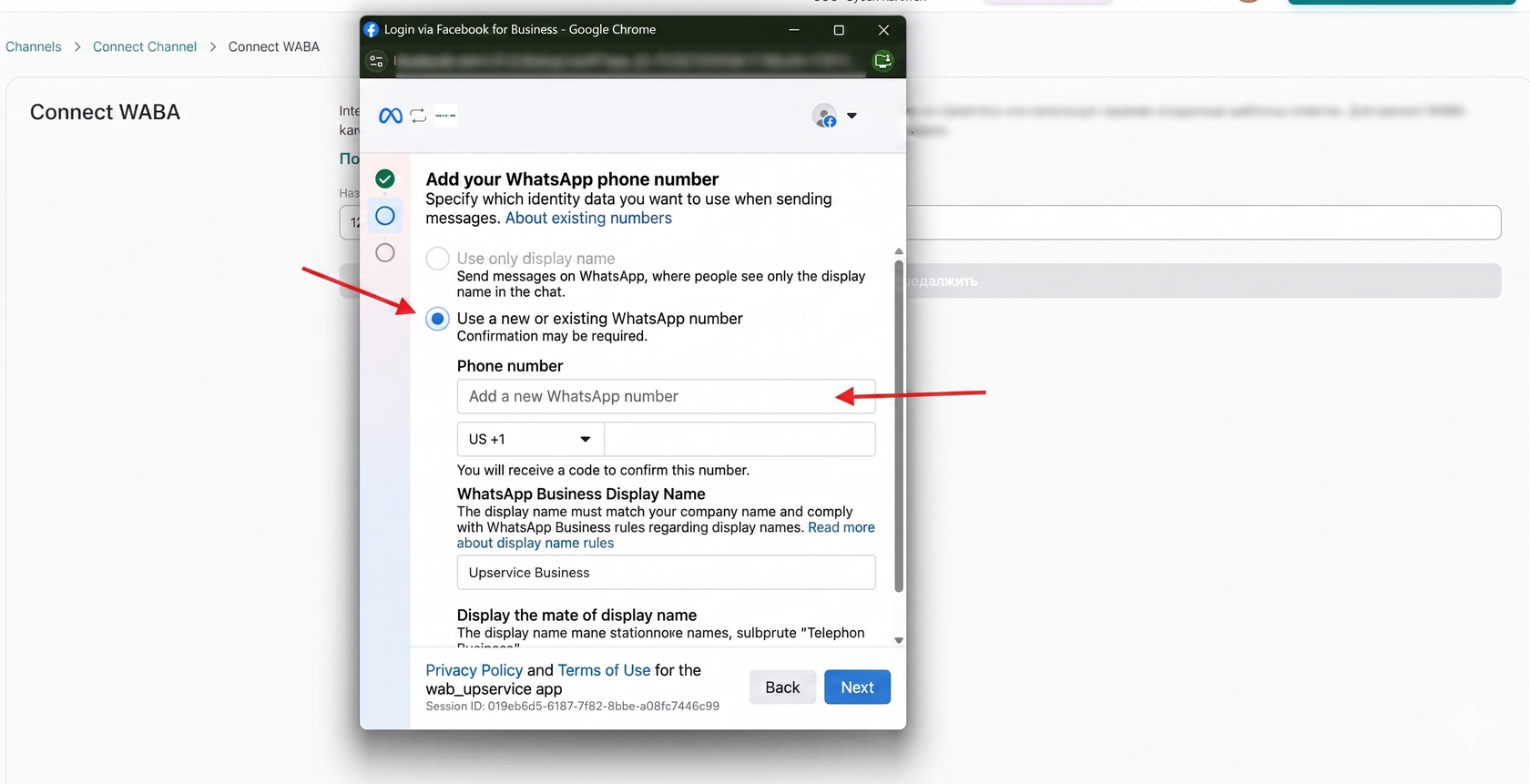
And then we just have to click "Confirm"
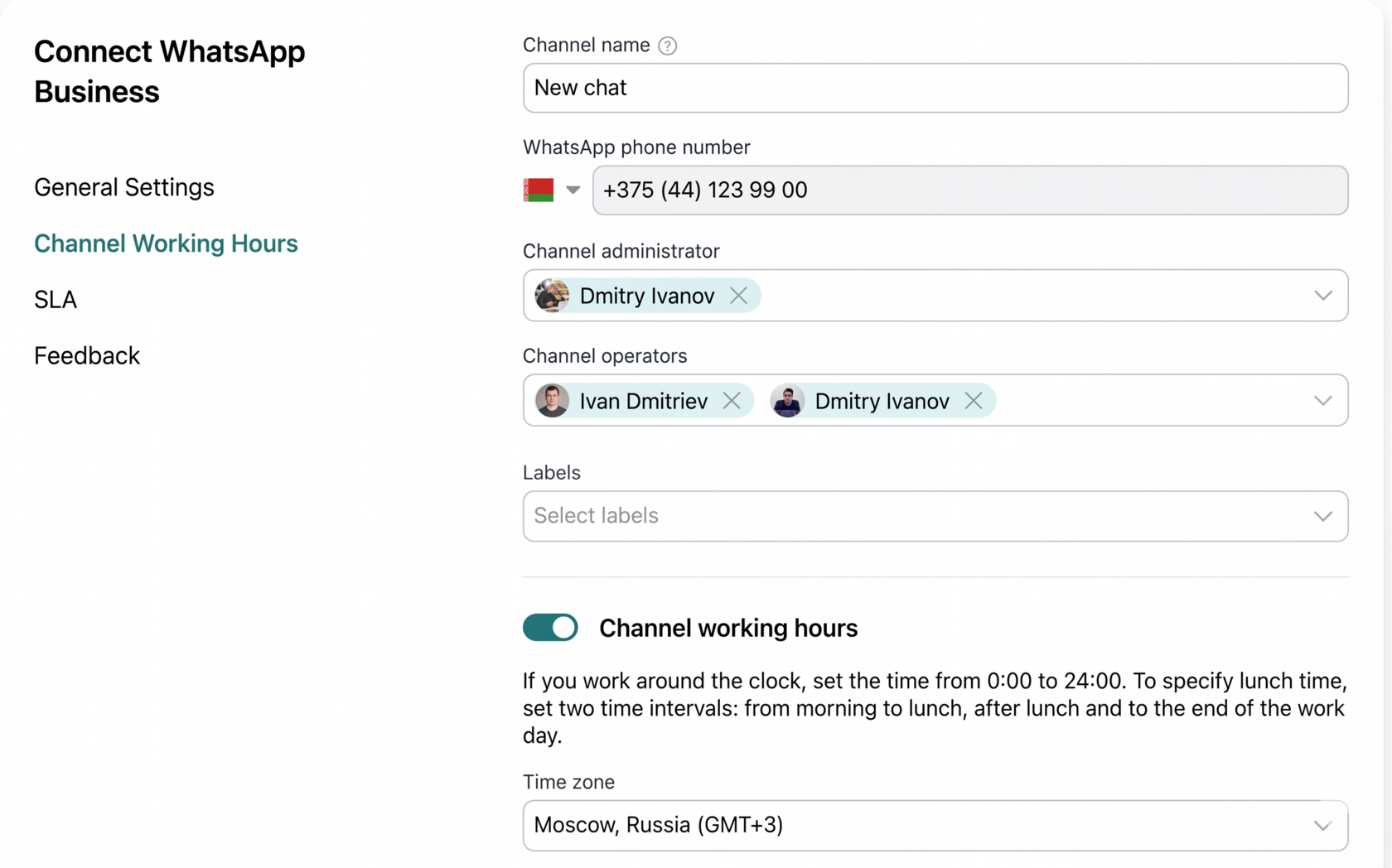
3.3. Check channel settings and save
After successful linking, the second step of channel settings in Upservice will open. Here you can check the channel name, WhatsApp phone number, channel administrator, operators, working hours, automatic response during non-working hours, welcome message, as well as additional switches available for the channel.
When all fields and settings are checked, click "Save". After that, Upservice will show a message that the channel has been successfully created.
4. What is a WhatsApp session and how long does it last
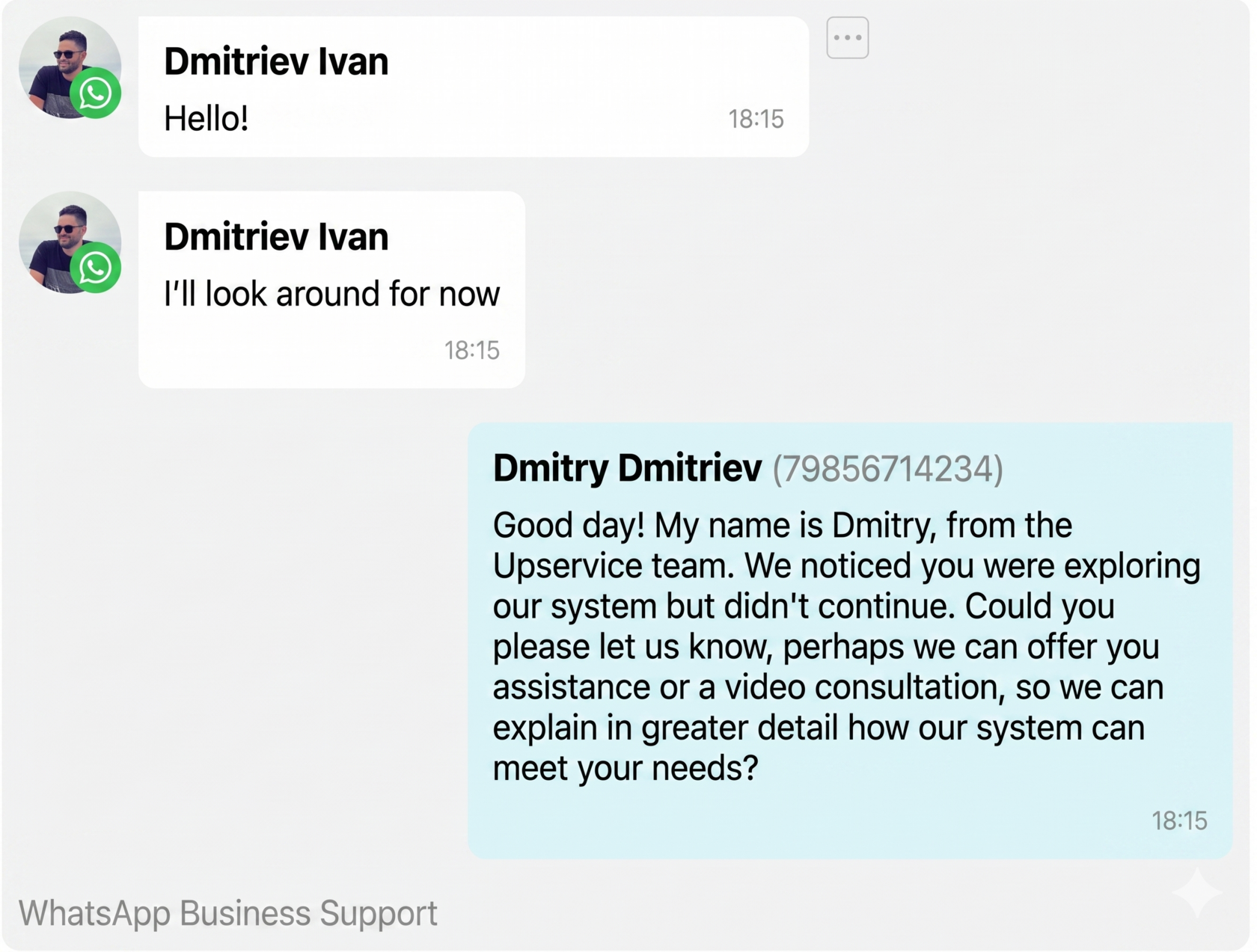
A WhatsApp session is a period when a business can send a client regular messages without a template. According to the official rules of the WhatsApp Business Platform, such a window opens after a client writes to you and lasts 24 hours from the moment of their last message.
While this 24-hour window is open, you can continue the correspondence with regular text messages. When the window closes, sending regular text becomes unavailable, and you must use an approved template to resume the dialogue.
You can read more about this window in the official Meta guide.
5. How to send regular messages
Regular text messages are used for standard correspondence with a client when the session is already open. This is the main mode of operation after an incoming message from a client.
Open a contact card or dialogue where the WhatsApp Business channel is selected. Make sure the session is open and the client has written to you within the last 24 hours. Enter the text of the message and send it the usual way through the correspondence window.
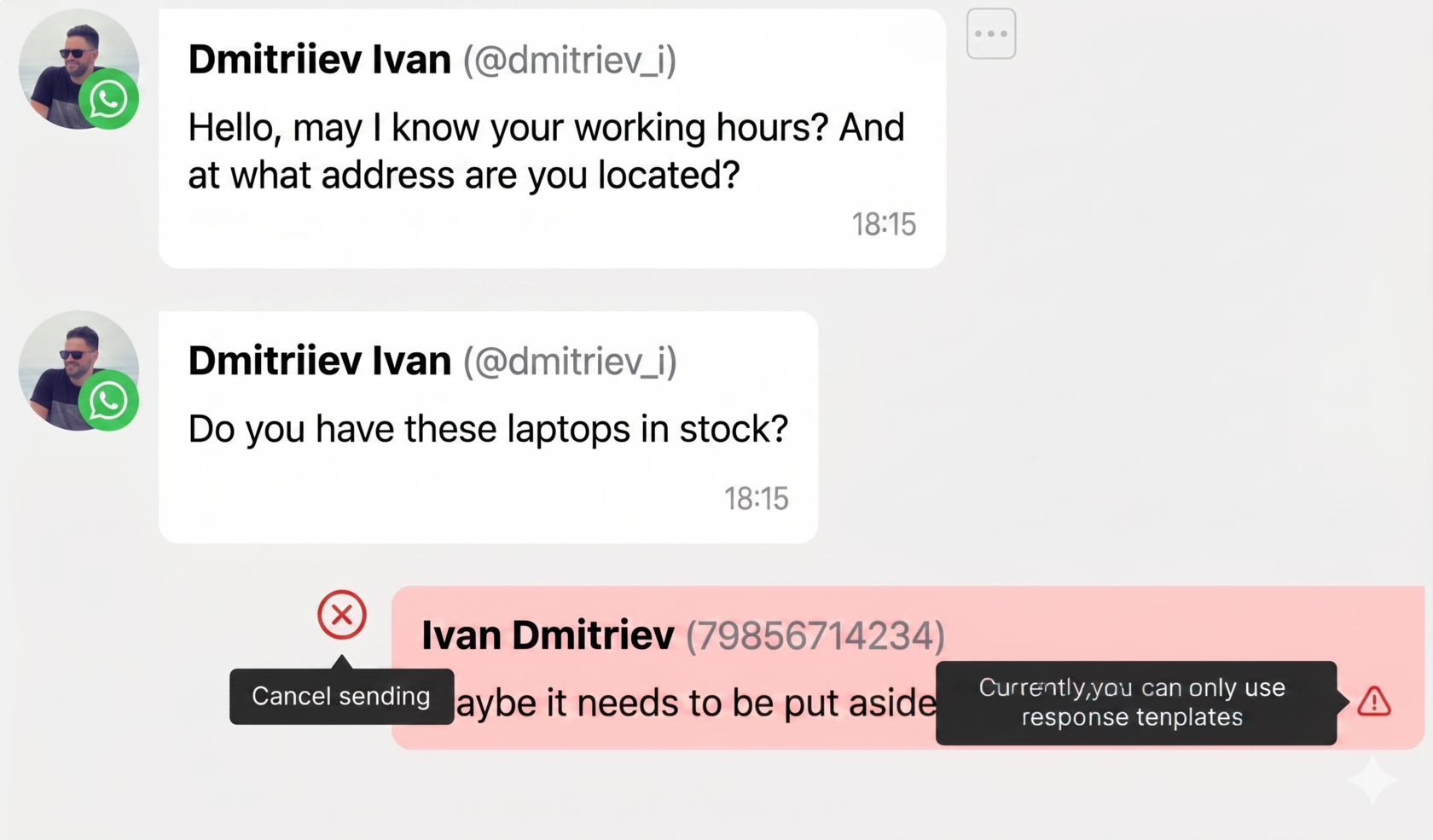
- The message will light up red if you did not have time to write to them in the open 24-hour window.
If all conditions are met, the message will be sent to the client in WhatsApp.
6. What happens if the session is closed
If the 24-hour window is already closed, a regular text message cannot be sent. In this case, WhatsApp Business requires using a template.
Such a message is not sent from Upservice. It is displayed in red, and the user is shown a notification: "Currently, you can only send reply templates".
7. How to create WhatsApp Business templates
Templates are used in two main cases: when you need to be the first to start a dialogue with a client and when the 24-hour session is already closed. Before sending, the template must be approved in the WhatsApp Business infrastructure.
In order to create a template - you need to go directly to the business.facebook interface for creating templates. It is located here. This is a template creation window in which you need to create your templates and send them for approval.
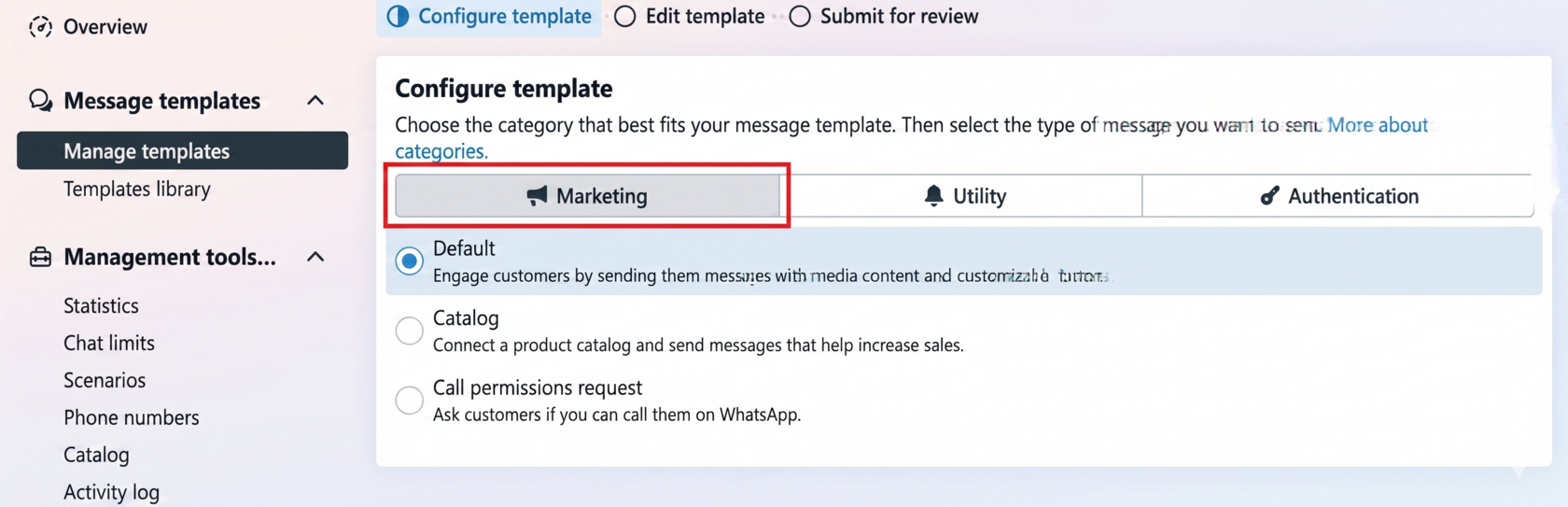
Important condition!
You can only create text messages in the Marketing category.
When creating a Template, you select Marketing
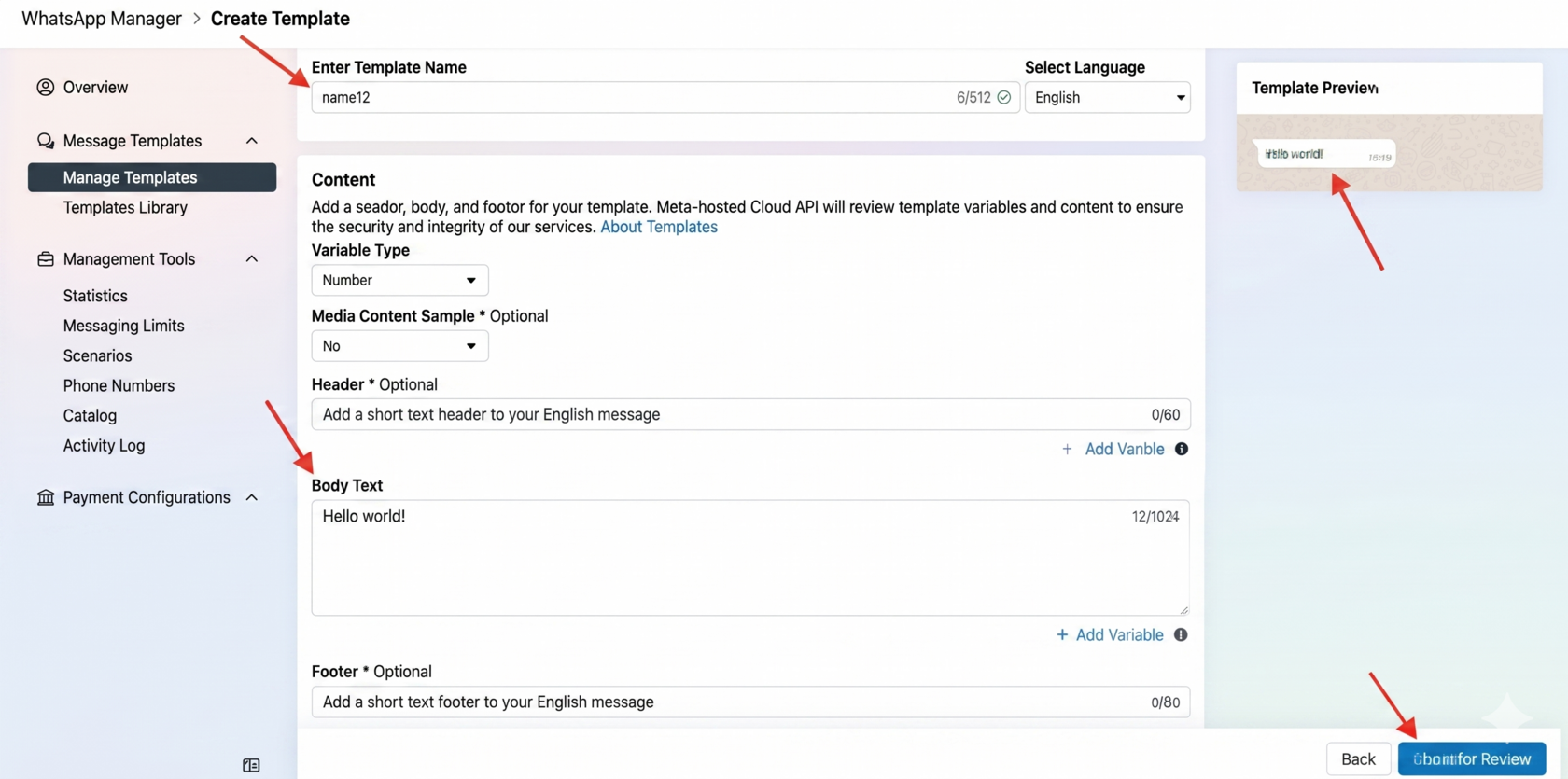
Next, you need to specify the "Template name", and also select the language on the right. In the "Content" block, you need to specify only the main text of your message that you want to send to your clients.
After that, you click the "Submit for review" button
7.1. Sending a message within Upservice
After the templates are approved, we go to our Upservice system.
We select the contact to whom we want to write first. In the correspondence window, you need to click on the "WhatsApp Business reply templates" icon. A channel and template selection window will open.
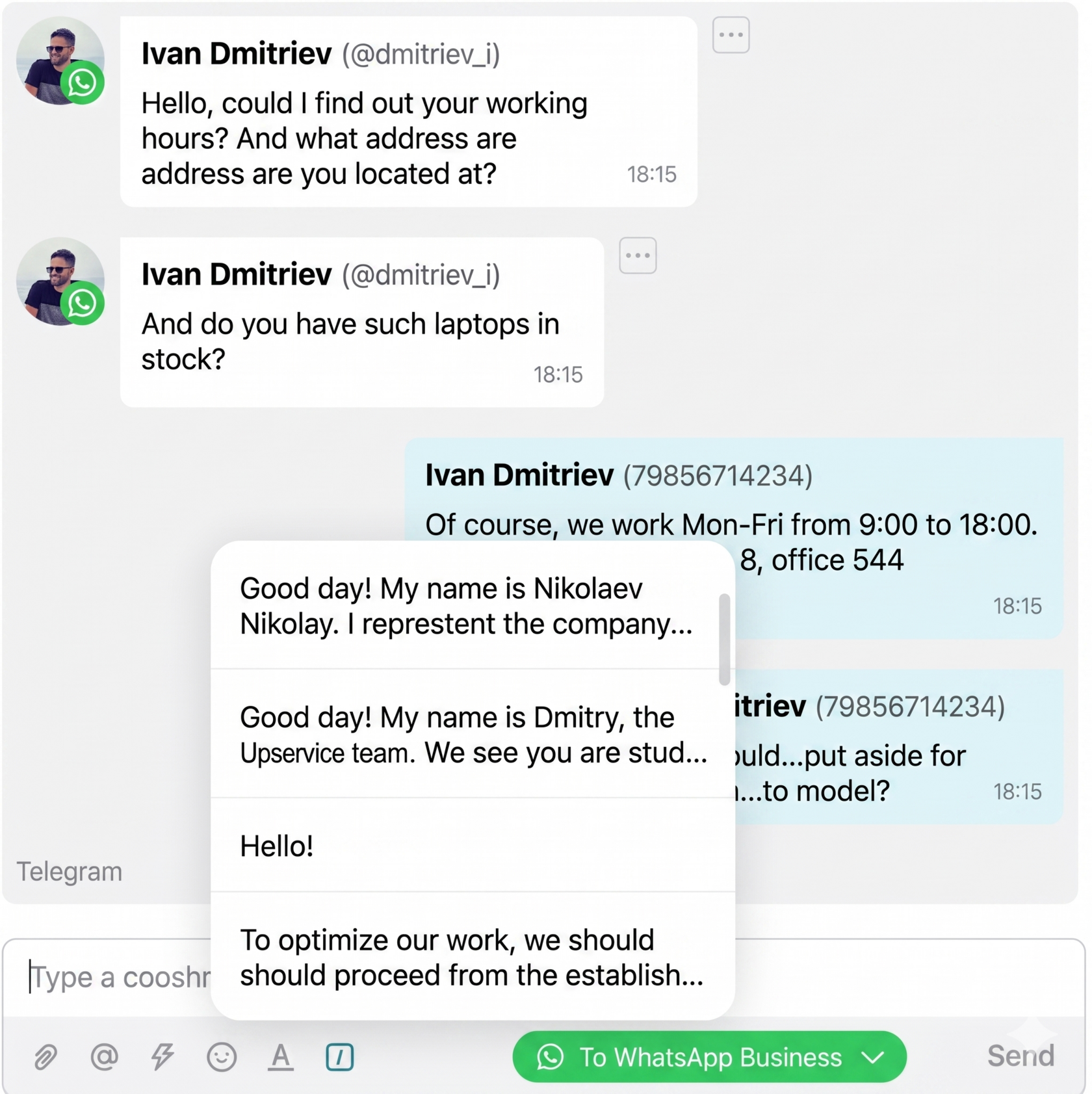
7.2. Select a channel and template
In the "Channel" field, select the desired connected WhatsApp Business channel. Below, a list of templates available for this channel will be displayed. Select the desired template by name.
After selecting the template, the "Sending a WhatsApp Business template" window will open. It displays the channel, the template, and its preview without the possibility of editing.
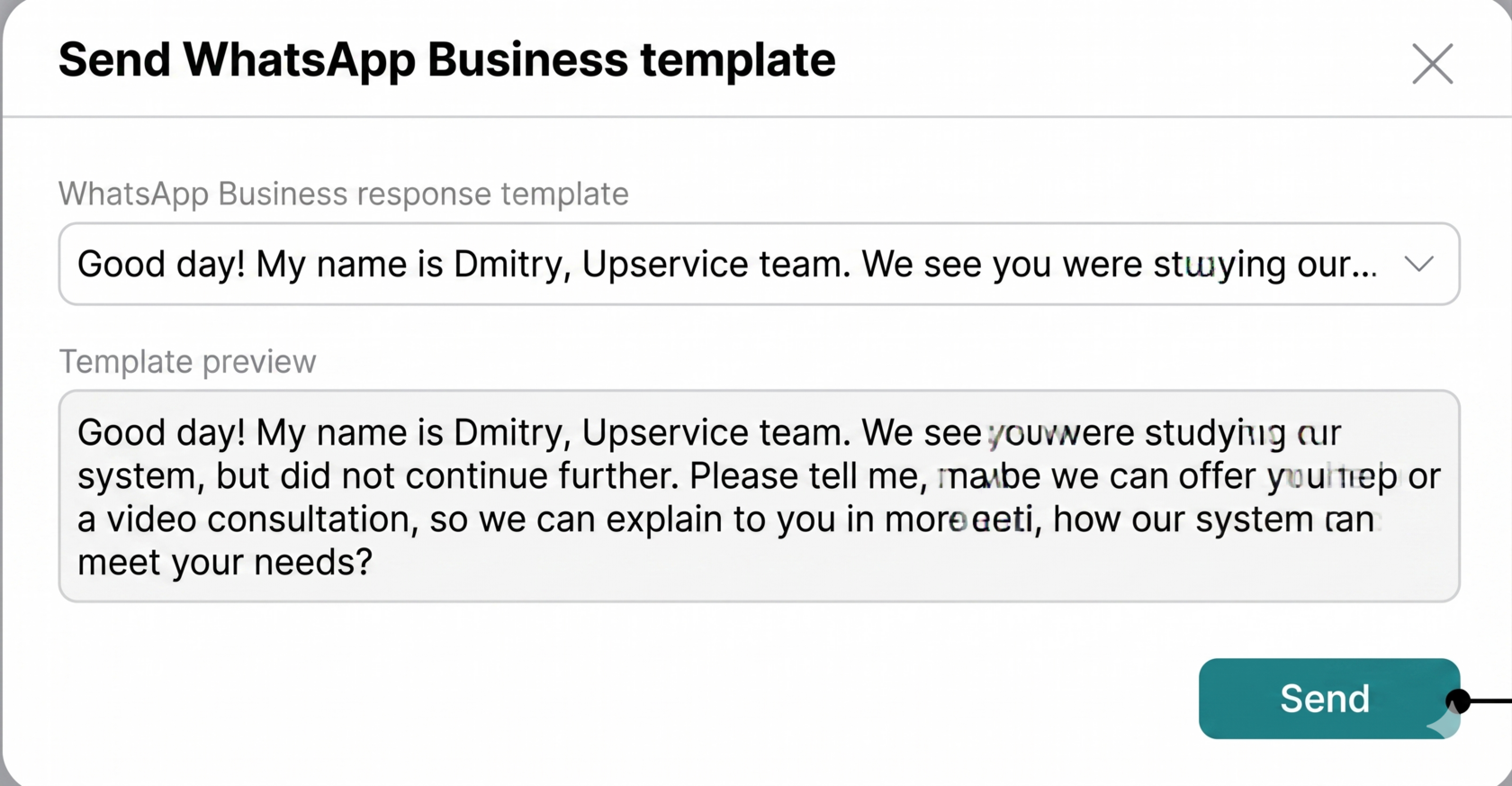
7.3. Send the template
Check the selected channel and template text, then click "Send". If the template fits the platform rules and is available for the selected channel, Upservice will send it to the client.
8. If the message was not sent
If an error occurs during sending, the message does not reach the client. In Upservice, it is displayed in red with the text: "Message not sent. If the error repeats, contact support".
Most often, an error is associated with one of the following reasons:
- the session is closed, and you are trying to send a regular message instead of a template;
- the channel was not fully connected or lost part of the accesses;
- the template is no longer available or its status has changed in the WhatsApp Business infrastructure.
9. Restrictions and recommendations
For the channel to work stably, it is important to adhere to the basic rules of WhatsApp Business and not use it as a mass spam channel. The platform monitors the quality of templates, user responses, and adherence to the messaging policy.
What is important to observe in practice:
- send only expected and relevant messages;
- do not send too many similar messages without obvious benefit to the client;
- use a clear company name and a correctly designed business profile;
- monitor the quality of templates and do not use misleading texts.
It is useful to periodically check against the WhatsApp Business Messaging Policy and the onboarding and opt-in guidelines.
If users often complain about your messages, do not read them, or block the number, the quality of the channel may decrease. This affects delivery, template availability, and the overall stability of the channel.
In short: the main rule of operation
If a client has already written to you and the 24-hour window is open - reply with regular text. If the window is closed or you want to write first - use an approved WhatsApp Business template.